 SaveNest
Cyberpunk 2077 save file location
Windows save reference
Cyberpunk 2077 saves are in %USERPROFILE%\Saved Games\CD Projekt Red\Cyberpunk 2077 on Windows, including Steam, GOG and Epic. Find your save files, back them up and check cloud sync below.
Save location
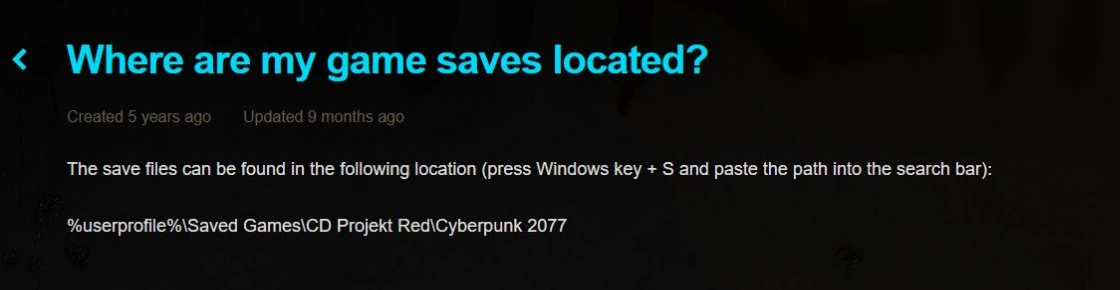
%USERPROFILE%\Saved Games\CD Projekt Red\Cyberpunk 2077
Opens with the SaveNest Windows app. Need the app? Download SaveNest →
Copy the folder path and paste it into Win + R. Windows resolves %…% to your own folders; select the account or save inside.
Open the Windows save folder
Press Win + R, paste the path above and press Enter. Steam, GOG and Epic Games Store use this Windows save location. Moving the game installation to another drive does not make its installation folder the save folder. %USERPROFILE% refers to the Windows account you are currently using.
Back up the whole save slot
A save slot contains sav.dat, metadata.9.json and screenshot.png. Keep these files together in their original folder. A screenshot or metadata file by itself cannot replace the save data; copying only sav.dat also leaves out its companion files.
- Create a manual save in the game, note its time and quest, then exit the game. Wait for any current launcher sync to finish.
- Copy the entire Cyberpunk 2077 folder to a dated backup folder outside the active save directory. This keeps all the slots together when you are unsure which one you need.
- Open the backup and check that the slot folders and their files were copied. Keep this original backup unchanged while you test another copy.
Cloud saves and cross-progression
Launcher cloud sync and the game’s cross-progression are separate features. Cross-progression does not upload every historical slot: CD PROJEKT RED says it uploads the latest save of each save type. Keep an independent local backup if you want an older quest or character state.
- Update the game. On the source device, open Load Game and use the Cross Progression entry to connect your CD PROJEKT RED account. Check Settings → Gameplay → Enable cross-platform saves.
- Make a new save and check for its cloud icon. On the other device, open My Rewards, connect the same account and then check Load Game.
Official cross-progression instructions · Steam Cloud out of sync or showing a conflict?
The folder is missing, or the game cannot see the save
If you have never saved on this Windows account, save normally in the game first. If you changed Windows accounts, look in the original account’s Saved Games folder. A console cloud save must finish cross-progression before you can expect to find a local Windows copy.
If the folder exists, compare the save time and quest with Load Game. Check the game version, required expansion and mods when a particular save will not load. Reinstalling the game does not recreate a missing save.
Restore a copy you already have
- Exit the game and preserve the entire current save folder elsewhere. Pause launcher cloud sync and in-game cross-platform saves while checking the restore.
- Restore the chosen complete slot folder directly under Cyberpunk 2077. Keep its companion files from the same backup; do not add an extra Cyberpunk 2077 directory level or combine files from different saves.
- Use Load Game to choose it explicitly. Check the character, quest and location, then make a new manual save. Resume cloud sync only after deciding which copy should be kept. If no earlier copy remains, SaveNest cannot reconstruct that progress.
Keep a checkpoint before editing or trying another quest choice
Use SaveNest to keep local backup history instead of repeatedly naming and copying folders. After adding or detecting the game, compare its save path with the one above and make a backup before changing anything. Local backup and restore are free and do not require sign-in. Automatic backup requires the option to be enabled and SaveNest to be running.
Cyberpunk 2077 save editor: supported changes and backup steps
Source: Ludusavi Manifest · Source reference, not an in-game load test. Attribution & scope · CD PROJEKT RED: save location