SaveNest
If Steam Cloud is out of date or not syncing, keep the game closed and back up the last device with your progress. Check cloud support, settings and connectivity, then retry there before switching PCs. A sync warning alone does not prove that a save is corrupted.
Example: the laptop is newer, but the desktop has the progress you want
Suppose the desktop reached a later area on Sunday, while the laptop opened an older character on Monday. Monday’s timestamp describes the last write; it does not prove the character has progressed further. Before resolving a conflict, quit the game on both PCs and keep their local folders separately. Do not let one computer’s copy overwrite the other during collection.
Name the candidates by machine and recognizable progress. The screenshot deliberately keeps two different candidates. Once you have confirmed which copy loads the intended character, resolve the launcher conflict in that direction. Keep the other candidate until the next normal launch still shows the chosen state.
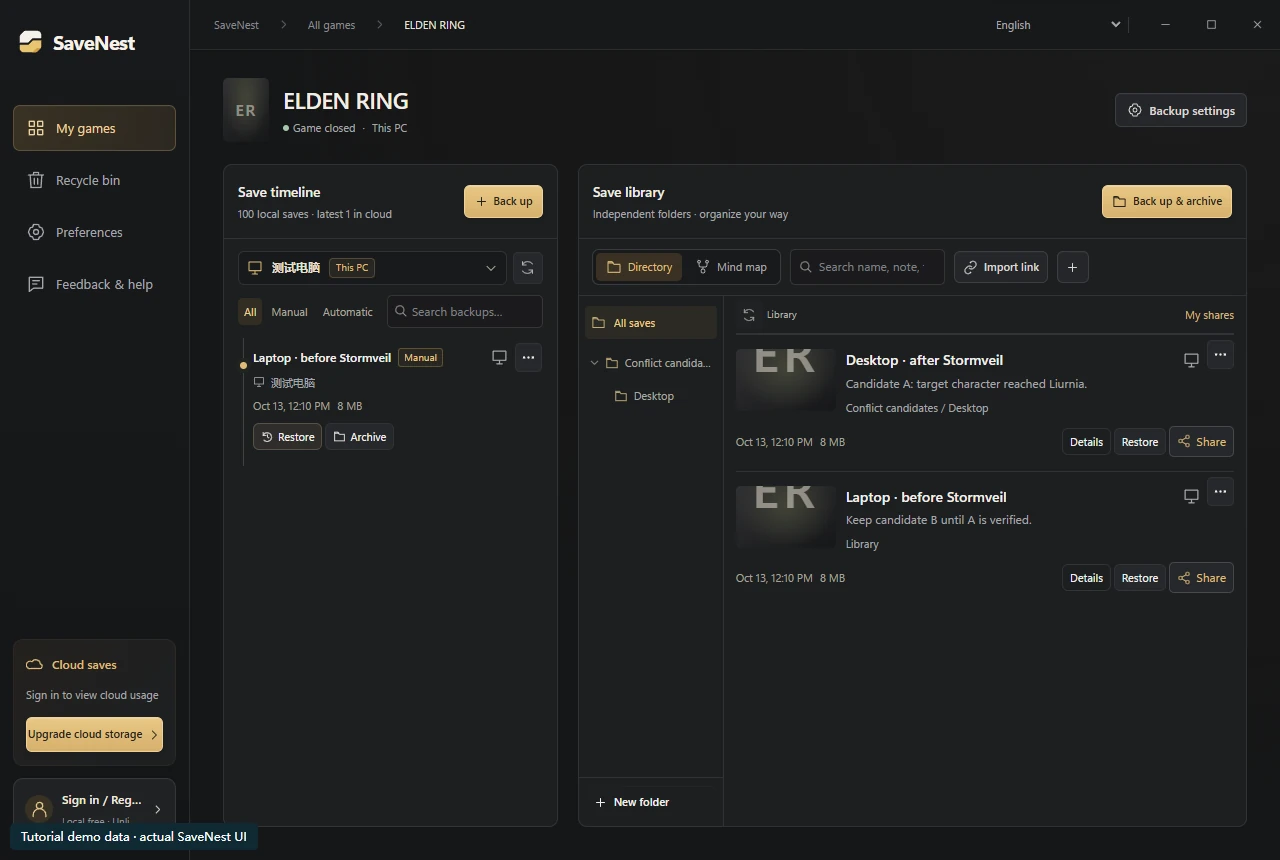
Two retained candidates, labeled by computer and progress instead of timestamp alone. Actual SaveNest interface with synthetic tutorial data; this is not a game-load compatibility test. Open full-size image
Compare local and cloud candidates
Write down where the desired session happened, whether that session exited normally and whether a transfer was actually confirmed. Time is a clue, not a description of the character’s state. If you are unsure, keep the local candidate before experimenting.
Do not create a new game or reinstall as a first troubleshooting step. Those actions can make the evidence harder to identify. Keep candidate folders separately labeled and avoid combining older and newer files into a synthetic save.
Steam Cloud out of date, out of sync or unable to sync?
Preserve the last device that holds the desired progress. Then inspect the exact error, network connectivity, the active account and the game’s cloud setting. Follow the current Steam help page for the reported issue rather than retrying different overwrite choices.
A click on Retry is only an attempted operation. Recheck the result before switching PCs. If there are several independent copies, keep them until you can identify a known-good state inside the game.
For a game’s setting, open Steam Library → Properties → General and inspect Steam Cloud. The global setting is under Steam Settings → Cloud. Transfer activity is recorded in logs\cloud_log.txt inside the Steam installation folder; inspect the relevant game and time without editing the log.
- Cancel the launch while investigating. Close the game on both PCs, identify the last device with the desired progress and copy its complete local save folder elsewhere.
- Confirm the same Steam account and that this game supports cloud saves. Check Library → Properties → General and Steam Settings → Cloud. Do not assume every game uploads its saves.
- Reconnect the source PC, restart Steam with the game closed, and use Retry Sync if offered. Wait for completion before opening the game elsewhere; inspect cloud_log.txt if the error persists.
- If a conflict appears, compare the retained local and cloud candidates before choosing. Load the intended slot, verify a milestone, exit and check the next launch before discarding either copy.
- Cloud out of date — Inspect the last device you played on. Its progress may not have uploaded; keep a copy before retrying or starting elsewhere.
- Unable to sync — Protect the last PC with the desired progress. Check the connection, Steam account and cloud settings before launching again.
- Out of sync — Wait for a successful transfer on the source PC before changing devices. A retry click alone does not confirm completion.
- Cloud conflict — Keep the available local copies and compare the sessions behind each candidate. A newer timestamp alone does not identify the right progress.
- Progress missing on a new PC — Check whether the original PC still has the save and finished its upload. Also confirm the same account and game edition.
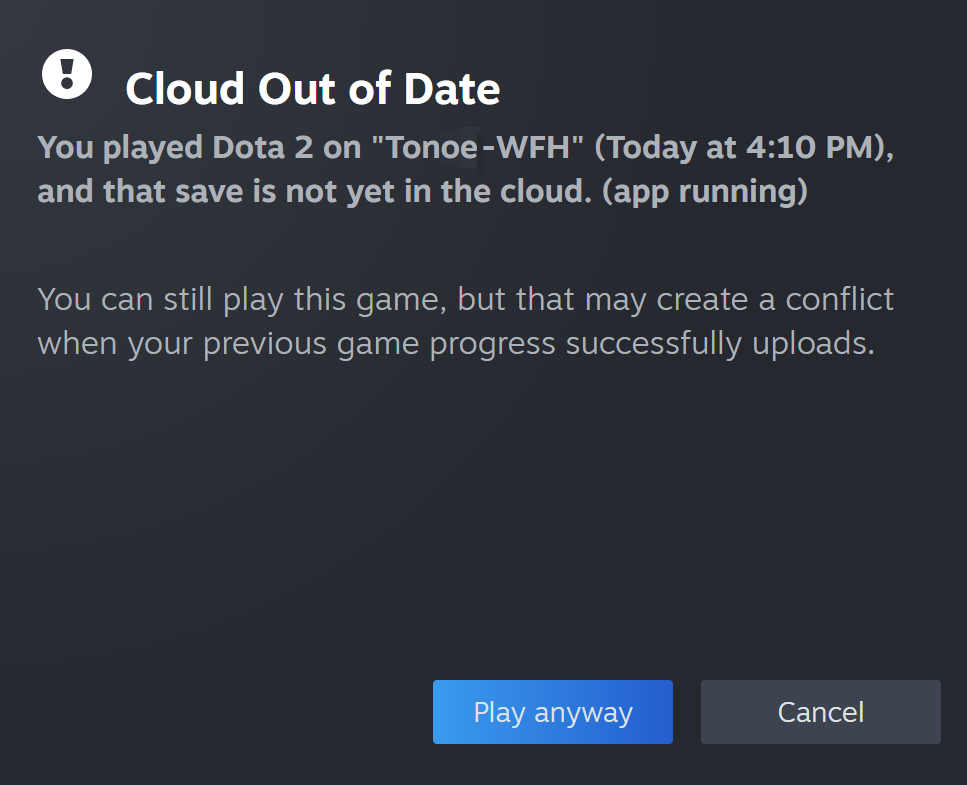
Valve’s English Steam Cloud example, retrieved 2026-10-22. “Play anyway” can create a conflict; preserve the source device before continuing. Open full-size image
How to download Steam Cloud saves without overwriting local progress
Steam offers a signed-in account Remote Storage page. If a relevant file is present, save the downloaded candidate outside the game’s active folder. Review its identity before considering a game-specific restore. The page’s available files are not a guarantee of unlimited rollback history.
With the game closed, preserve its current local save first. On Steam’s own Remote Storage page, check the account and game, then download the available candidate files into a separate staging folder. Record the listed names and paths; a browser download folder is not the game’s save location.
Review the complete game-specific file set before restoring. Do not flatten unrelated paths, rename a browser duplicate over an active save, or mix files from different candidates. Follow the game’s restore procedure, verify the intended slot, and retain the safety copy while reviewing any subsequent cloud prompt.
Also inspect independent exports, retained copies on another PC and any recovery files documented by the game. If a needed state was overwritten everywhere and no earlier copy remains, synchronizing again cannot reconstruct its missing contents.
- Game save file locations on Windows & backup guide
- Restored game save not showing? A step-by-step troubleshooting guide
Use SaveNest alongside a launcher
SaveNest keeps its own timeline and permanent milestones. It does not sign in to Steam Cloud or retrieve Steam history. Use it to keep an independent known state before a launcher conflict, update or deliberate rollback.
Keep the game closed during a restore and avoid competing writers. There is no universal cloud-switch sequence for every game. If using SaveNest cloud storage, download into history first and confirm restoration separately after checking scope.
The second launch is the useful test
After checking the chosen save, exit normally and wait for the launcher to finish syncing. Launch once more and check the same character and landmark. If the save changes back only after this sequence, note exactly when it changes; repeated local restores will not fix a competing sync source.
Common questions
Is the newer timestamp always correct?
No. Select the state you intend to keep using session, device and milestone context. Preserve the local candidate first when the context is unclear.
Must I always disable cloud sync?
Follow the game’s documented behavior and the launcher’s displayed instructions. A blanket sequence can be inappropriate for a particular game.
Can SaveNest retrieve my old Steam Cloud files?
It manages SaveNest backups only. Any available Steam Remote Storage files must be checked on Steam’s own site.
Does out of date mean my save is lost?
No. The source PC may still hold the latest progress. Keep its local files before retrying. A cloud status label does not prove corruption or guarantee that Steam holds an older recoverable version.