SaveNest
This article covers local Windows PC saves. Screenshots and in-game checks use Steam version 2.5 and a separate unmodded test character on October 24, 2026, demonstrating money, attribute points and perk points. SaveNest 1.0.7 adds editing for existing components, ammunition and unspent Relic points; available fields depend on the opened save. The five base attributes are read-only. Quest flags, equipment properties and console saves are outside this article’s editing scope.
01 / Start with the manual method
Where are Cyberpunk saves? Identify the manual slot first
Paste the following path in the Explorer address bar:
%USERPROFILE%\Saved Games\CD Projekt Red\Cyberpunk 2077%USERPROFILE% points to the current Windows account. If you cannot find the directory, confirm this is the account you play with and that you have saved in-game. This is the save directory under Saved Games, not the game installation folder.
Open “Save Game”, create a new manual save and note its number, playtime and scene. Exit the game and let launcher sync finish. ManualSave-0 is manual save 0, with game data in sav.dat. AutoSave-0 and QuickSave-0 are different slots.
For a manual backup, copy the entire selected ManualSave folder outside the save directory, keeping its metadata and screenshot together. Name the outer backup folder “Before changing build” and keep the original slot folder name inside it.
To try another story branch, save before the choice
Before a key conversation or a different ending route, create a manual save while saving is allowed and before making the choice. Note the quest, slot and progress, then keep a complete copy as described above. Autosaves and quicksaves keep changing, so they are not permanent branch starting points.
After finishing route A, create another manual save and back it up. To try route B, load the save from before the choice. If that slot is no longer available, exit the game, preserve the current save, then restore the retained copy to its original location with its original folder name. In “Load Game”, confirm the starting point by quest, time and scene.
This only restores a previously saved state. Earlier quests, relationships and decisions can affect later options; a save near the ending does not guarantee that every ending condition is met.
02 / Simplify the workflow with SaveNest
Save "branch starting point" and "route result" separately
- Find Cyberpunk 2077 in SaveNest and check the save directory against your Windows account. Save in-game and exit, then click “Back Up Now” and confirm a successful entry.
- Keep this backup in the permanent library and name it “Quest — Before choice” or “Before changing build”. Record the slot number so you do not have to guess from the date later.
- After route A, back up again and save it as “Quest — Route A result”. Before returning to the starting point, preserve your current progress, select the original backup and check its restore scope. Restoring a complete directory may affect other slots.
For routine history, enable “Automatic Backup” for this game, choose the check interval and keep SaveNest running. Enabling it does not prove a backup succeeded: confirm the timeline entry. Before important choices, actively confirm a backup and keep it in the permanent library.
| Task | Manual method | Using SaveNest |
|---|---|---|
| Preserve a branch starting point | Copy the complete slot folder and name it separately | Keep the backup in the permanent library and label the quest and slot |
| Keep different route results | Make another copy for each route | Keep the starting point and each route as separate milestones |
| Prepare another build | Copying files will only retain the original values. | Edit supported eurodollars and unspent points, then allocate the points in-game |
Edit eurodollars, attribute points and perk points
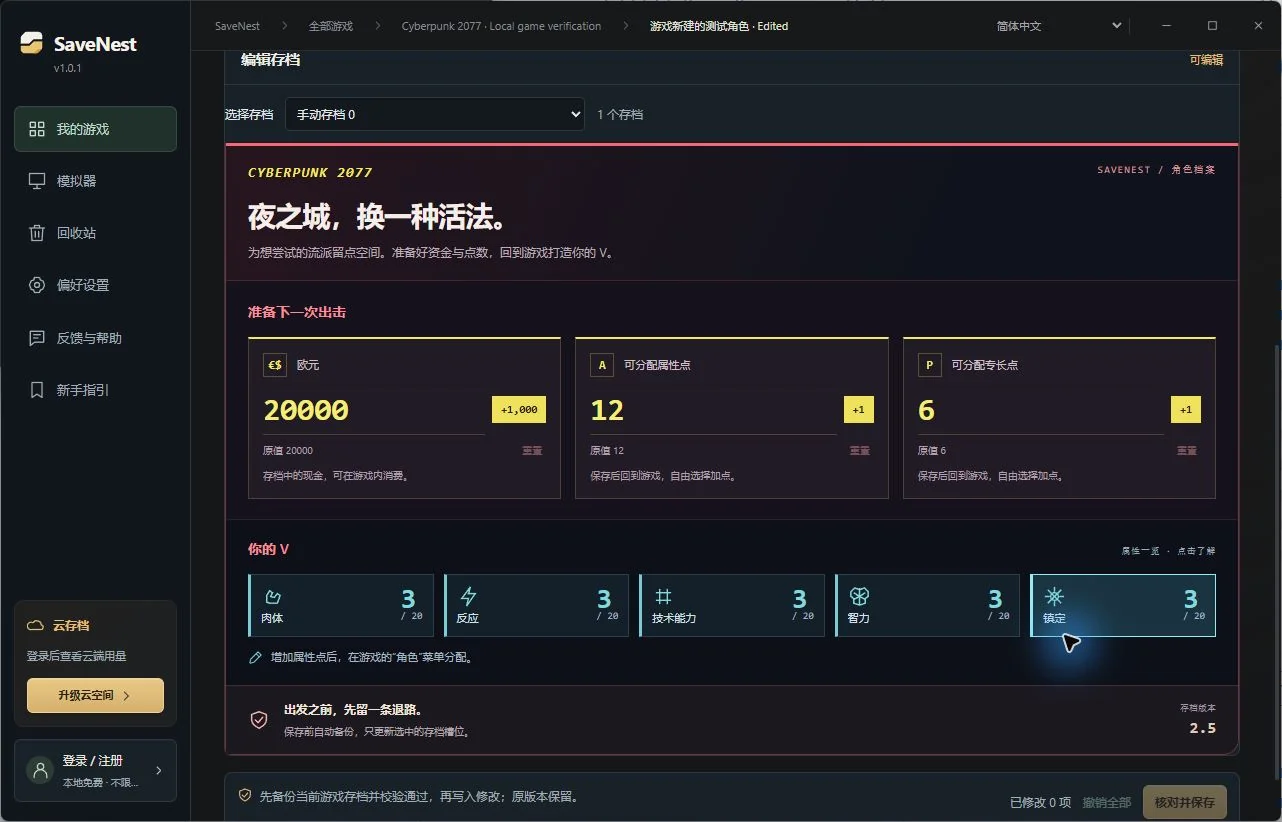
Open “Edit Save” in backup details and select the manual slot you noted. Start with eurodollars, unspent attribute points and unspent perk points. Enter the target total: changing 7 points to 12 gives you 5 additional available attribute points. It does not set Body to 12 or refund points already spent.
Click “Save Changes”, compare original and edited values, confirm the game is closed and choose “Back Up and Save”. SaveNest preserves a safety backup before writing the selected sav.dat. Allocate points to the five attributes through the game’s character menu.
New in 1.0.7: Existing components, ammunition and Relic points
Update to client version 1.0.7 or later, then open the editor for the same backup. The following fields are editable only when the current save is recognized and the fields are enabled.
| What you want to adjust | What can be done now | What to confirm first |
|---|---|---|
| Tier 1–5 Item Components | Change the quantity of existing components | The corresponding entry must already exist in the save; missing entries are not created. |
| Pistol, rifle, shotgun, sniper rifle ammunition | Change recognized ammunition quantities | Use the correct ammunition type; this does not create new weapons |
| Unspent Relic points | Change recognized available points | Allocate them in-game; this does not automatically unlock abilities or content |
If an item is missing, check the client version and whether that save contains the resource. Preserve the original and do not substitute another item’s fields. Review and save the changes, then load the same slot in-game to check components, ammunition or Relic points. Create a new manual save and reload it to confirm the changes persist.
Load the specific slot in-game and verify the result
Restart the game, open “Load Game” and choose the edited manual save by number, time and scene. “Continue” may load a different autosave with different values.
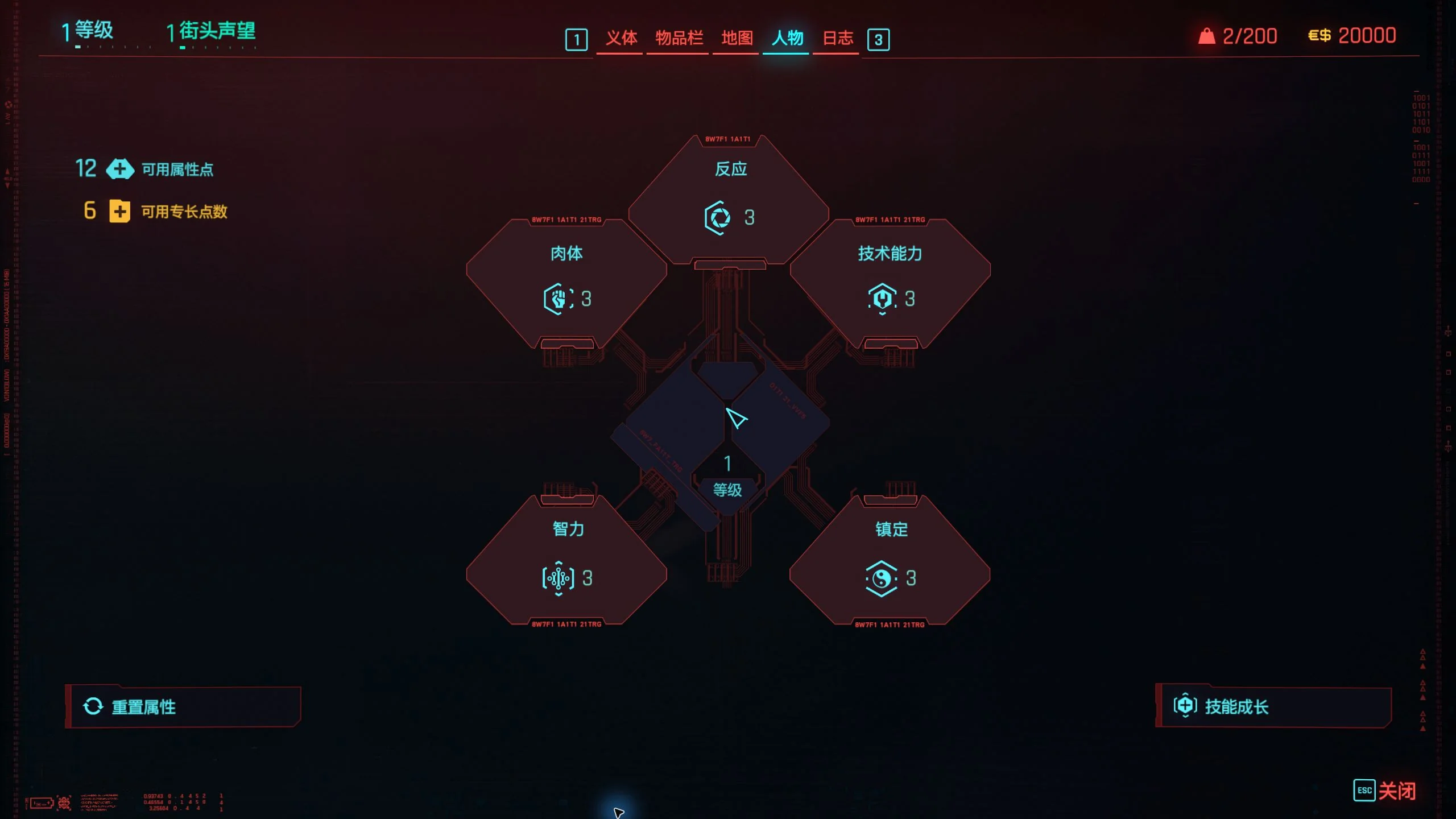
Check eurodollars in the inventory and available attribute and perk points in the character menu. Allocate points through the game, then create a new manual save. Exit and restart the game, load that new save and check money, remaining points and attributes.
In the retained Steam 2.5 test, the separate character changed from 300 eurodollars, 7 attribute points and 0 perk points to 20,000, 12 and 6. After spending 1 attribute point and learning two perks, saving, fully restarting and reloading, the save retained 20,000 eurodollars, Body 4, 11 attribute points and 4 perk points. This test did not verify a purchased item.
If values do not change, or you want to undo the attempt
- Values unchanged: Check the manual slot number and the Windows accounts used by the game and SaveNest. Manual save 0 and autosave 0 are different files.
- Points available but a perk stays locked: Unspent points do not remove attribute or prerequisite perk requirements. Follow the conditions shown in-game.
- “Request Support for This Save” appears: Preserve the original and provide the game version and the fields you want to edit. Detecting the game does not mean this save version is editable.
- Undo points or story choices: Back up current progress first, restore the appropriate older backup from the permanent library and load the intended slot. Without a copy from before the choice, backup software cannot reconstruct that earlier state.
For further troubleshooting, see the steps for unchanged progress after restoring a save. For launcher version conflicts, see the Steam Cloud conflict guide.
FAQ
Can SaveNest edit quest flags or unlock every ending?
No. The current editable scope covers money, unspent points, and recognized existing components and ammunition. To try another story branch, load an appropriate save from before the choice and meet the game’s quest requirements. A backup does not rewrite quest flags.
Are CP2077 save editor, CyberCAT and Cyber Engine Tweaks the same thing?
CP2077 is a common abbreviation for Cyberpunk 2077. CyberCAT is a separate save editor whose project lists features such as quest flag editing. Cyber Engine Tweaks (CET) provides a Lua framework and a console during gameplay. This article covers SaveNest’s local backups and the listed resources and points; it does not include those tools’ other features.
Can I add item components or ammunition that are not originally in the save?
These fields change quantities of existing entries only. They do not create missing items or generate all equipment. If a field is absent or read-only, preserve the original save and check the current supported scope.