SaveNest
Find the check that matches the symptom
A completed copy, a completed restore and a successful in-game load are different checkpoints. Start with the symptom you can observe. The table helps you choose the next investigation; it cannot certify every game or repair a missing state.
Scroll the table sideways on small screens.
| Symptom | Check | Next action |
|---|---|---|
| Cloud download finished; game unchanged | Was Restore confirmed? | Inspect the history entry and explicitly restore the intended version. |
| Continue loads the wrong point | Character, profile and slot | Use the load menu and compare the named milestone. |
| Manual copy has no effect | Actual live folder and account | Check documented paths, nesting and the complete save set. |
| Progress changes after launch | Launcher synchronization result | Retain both candidates and resolve the displayed sync issue. |
| The file will not load | Edition, DLC, mods and exact error | Follow developer compatibility guidance before replacing more files. |
| Save file corrupted | Exact error and a known-good earlier copy | Preserve the unreadable file. Check developer recovery guidance and compatible backups before replacing anything. |
Follow the file from the backup to the game
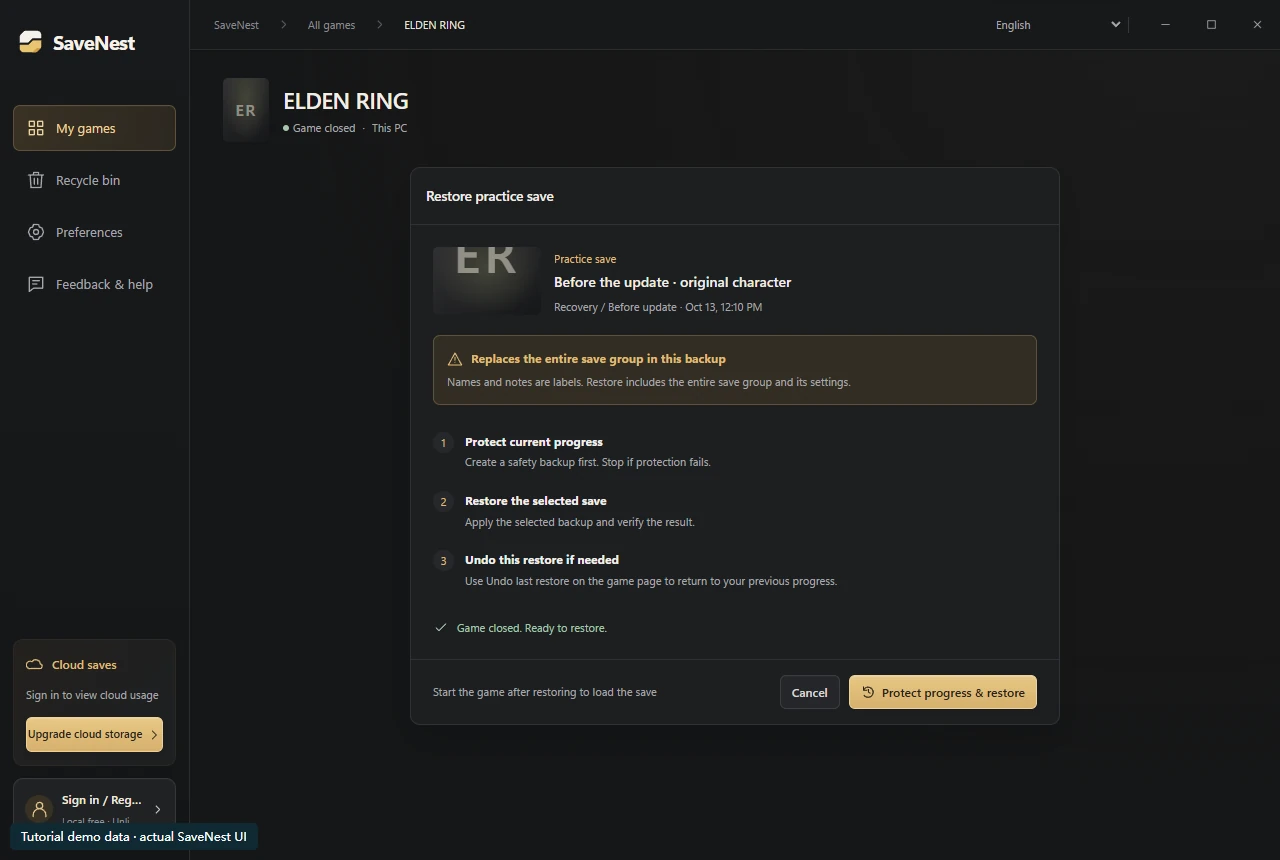
If the restore reported success but the game is unchanged, open the restore screen and read the target directory. Compare it with the directory whose files change after a normal in-game save. A different Windows profile, Steam account or redirected Documents folder can produce two plausible locations. Record both paths before trying another restore.
If the right state appears once and disappears after restarting the launcher, investigate cloud synchronization. If the state is already wrong before sync, inspect the selected backup and account. If loading fails with an explicit game-version or DLC error, return to the retained current copy and resolve that mismatch; renaming the folder does not convert a save.
Verify account, user and directory
A machine can contain several Windows users, player accounts and old edition folders. Verify all of them against the session you intend to load. Redirected Documents and stale folders left after reinstalling can mislead a manual restore.
Check for an extra nesting level introduced during extraction and for companion files the game expects. Do not fix an account mismatch by changing identifiers inside the save. Keep the original candidate intact while checking documentation.
Separate launcher sync from restoration
Keep the game closed while applying a restore. Inspect the launcher’s displayed status and use the game’s own guidance for cloud conflicts. Different games use different synchronization designs, so do not rely on one universal enable/disable sequence.
If a sync decision is required, preserve the local candidate first and compare the intended session and device. A later timestamp alone does not tell you whether the desired milestone is present.
Check compatibility and operation results
Integrity checks establish that captured or transferred bytes match. They do not establish compatibility with a new game build, missing DLC, a changed mod set or another player account. Capture consistency also matters if the game was writing during backup.
Read the actual restore outcome. A blocked operation may have made no change; a cloud history entry may have only been downloaded. Resolve a specific reported failure before initiating another data-changing action.
Return to previous progress and get help
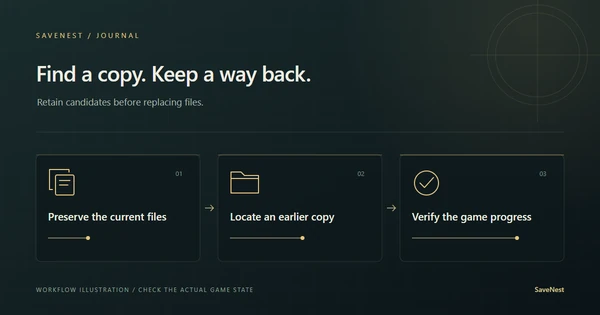
Find the corresponding before-restore backup in the SaveNest timeline and review its time and scope before choosing Restore. This returns to the state captured before that restore and first protects the current state. It cannot undo arbitrary manual copies or all past gameplay.
If no useful earlier version remains, inspect the game’s documented recovery files and independent copies. For support, provide edition, client version, approximate time, expected milestone and exact error. Describe what happened without sending passwords, verification codes or private save contents.
Common questions
Should I keep restoring until it changes?
Repeated replacement without a new finding can remove useful evidence. Identify the failed checkpoint and preserve candidates before trying again.
Does reinstalling recover the old save?
Only if a usable copy still exists and the relevant system makes it available. Reinstallation does not reconstruct uncaptured progress.
Can a backup for one character affect others?
It can when characters share a container or restore scope. The confirmation’s complete scope determines the effect, not the checkpoint name.
Can SaveNest repair a corrupted save file?
SaveNest can restore a retained backup; it does not repair a game’s internal save format. Preserve the damaged file and check developer recovery guidance. A matching checksum does not prove the game can load the save, and missing progress requires an existing usable copy.
References & further reading
Game locations and sync behavior can change. Check the instructions for your edition.