SaveNest
For recognized Enshrouded 1.0 SV2C v2 saves; the options shown after opening the file determine what can be edited. Equipment and skills remain read-only, and world editing currently supports the name. Save editing does not repair corrupted saves.
01 / Start with the manual method
Manually preserve your current character and world first
Want to spend tonight building instead of gathering materials again? Start with a small addition. Give the pre-edit backup a clear name so you can return to your original progress later.
Enshrouded 1.0 has “Local” and “Steam Cloud” tabs in its character and world selection screen. Confirm which source you use, save and exit the game. The local directory is %USERPROFILE%\Saved Games\keen games\Enshrouded\default; the Steam copy is at <Steam>\userdata\<account>\1203620\remote. Replace the two placeholders with your actual Steam installation and account directory.
- Copy the complete save directory you currently use into a separate dated folder. Note the source (“Local” or “Steam Cloud”), character and world. A backup of client-side character saves does not include a dedicated server’s world.
- To restore manually, close the game, preserve the current directory, then put the selected complete copy back in its original location. In-game, select the same source tab and check both character and world.
02 / Simplify the workflow with SaveNest
Character editor or world editor: choose the right target
Choose a character card to add materials or change inventory quantities and levels; choose a world card to rename a world. The files hold different parts of your progress. Materials in a character’s inventory do not directly become buildings in the world.
Automatic checks require SaveNest to remain running and automatic backup to be enabled for this game. The interval controls how often it checks; it does not guarantee a distinct backup at every interval. Busy or continuously changing files may require a later retry. Check the result and any errors in the app.
- Search for the exact game and version in SaveNest, open its details and enable backup. Check the detected save location and player account. If no save is found, first confirm the game has created one, then resolve detection; do not choose an arbitrary directory with a matching name.
- Enable “Automatic Backup” for this game, choose the interval and keep SaveNest running. After your progress changes, confirm a successful backup appears in the timeline.
- Open Enshrouded in SaveNest, check the detected save location, click “Back Up Now” and wait for a successful timeline entry.
- Keep this backup in the permanent save library and name it “Before adding materials”. Click the save name to open its details.
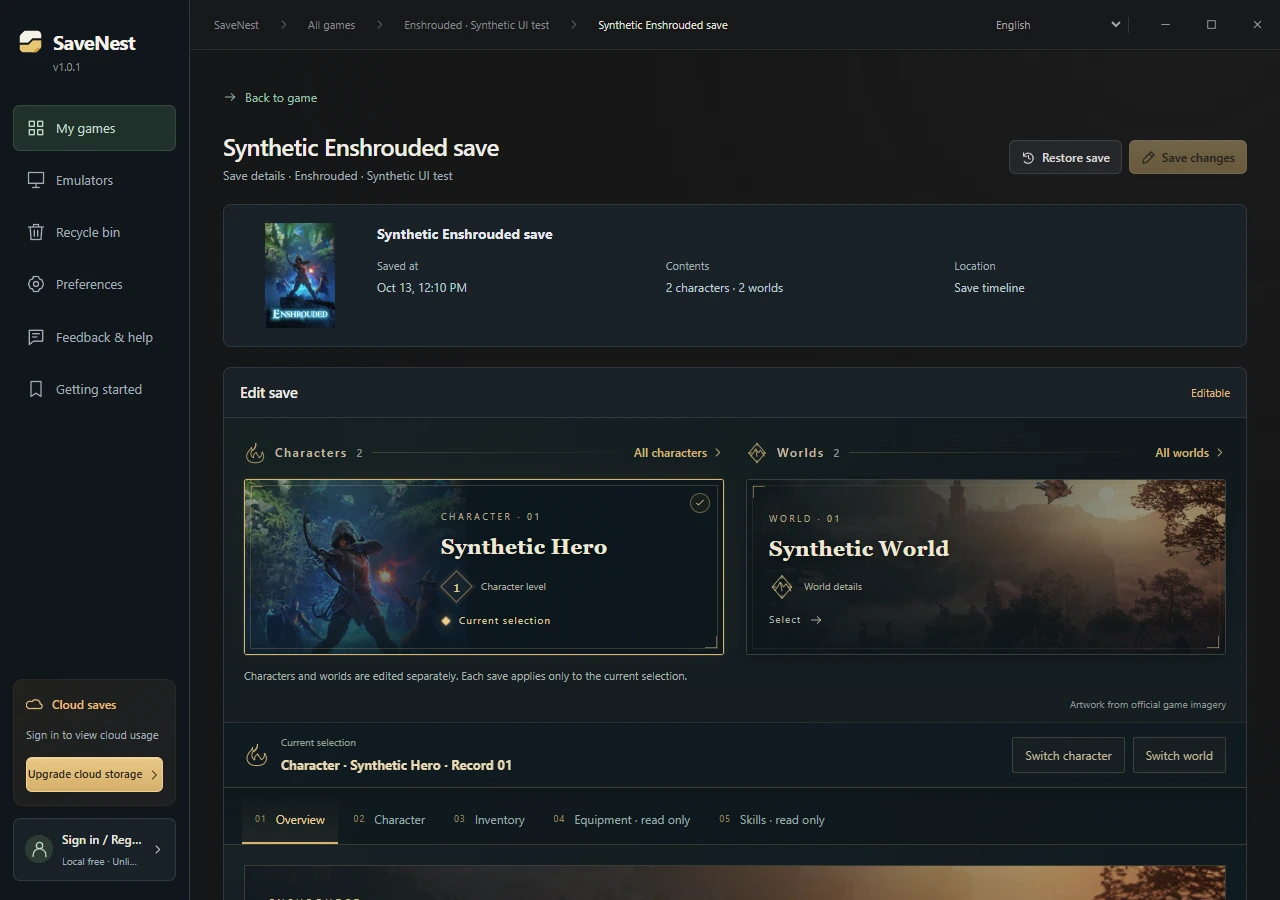
- Select the character card. If there are several characters, use “Switch Character” and check the name and level first. A world card opens world information, not character inventory.
On small screens, swipe horizontally to see the full table.
| Task | Manual method | Using SaveNest |
|---|---|---|
| Locate the current save | Check the path and identify the account folder yourself. | Detect supported games and save locations automatically; check the account on first use. |
| Keep multiple versions | Copy the files, add a date and organize each backup yourself. | Use automatic backups for the timeline and keep important milestones in the permanent library. |
| Edit the save | Copying a save preserves its existing values. | Edit recognized inventory items and character levels, review the differences and save. |
Add a few building materials and spend your time building
This edits the selected character file. It does not import another player’s base, merge worlds or rewrite building progress. Ask the host before joining a friend’s world with an edited character.
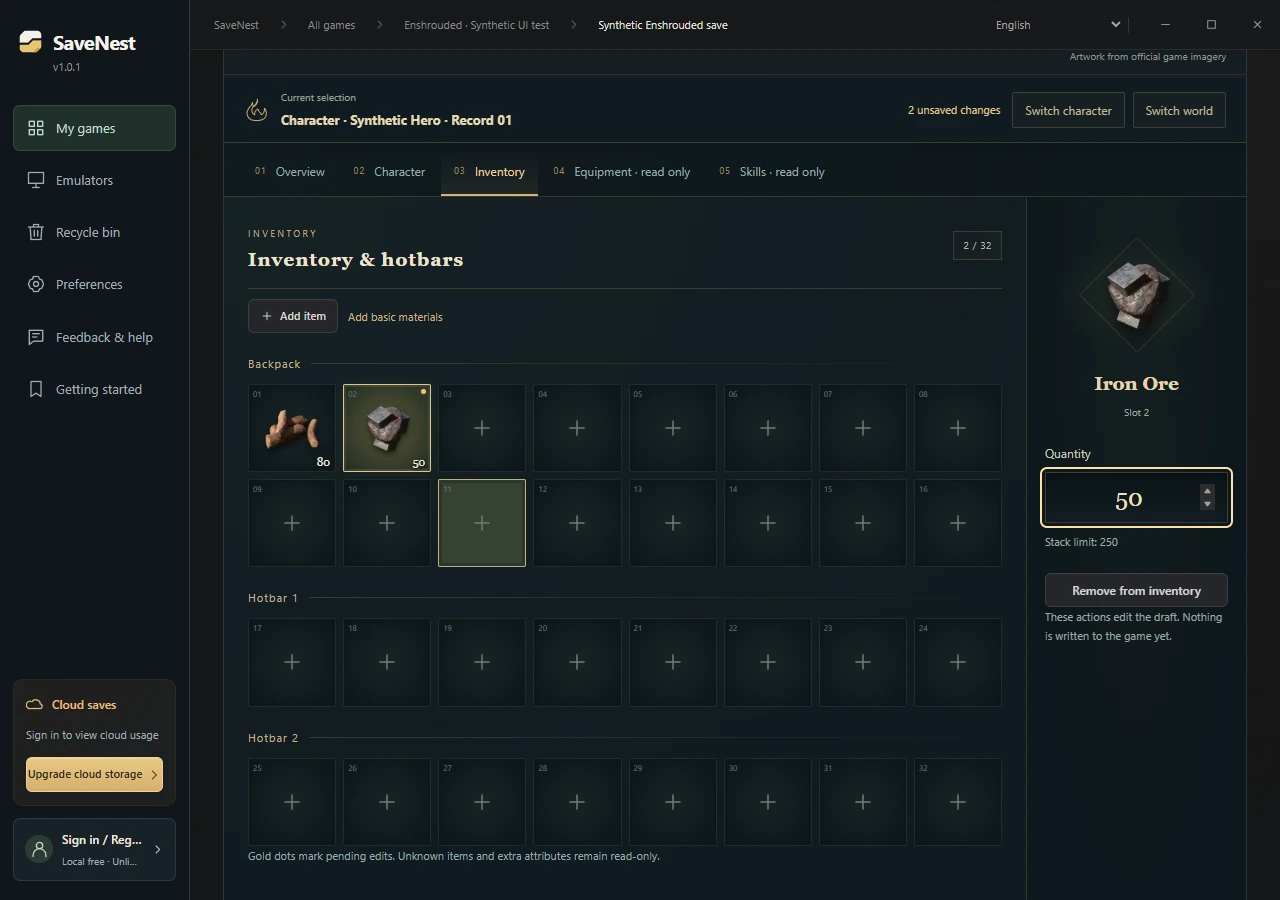
- Open “Inventory & Items”. Select a recognized material and adjust its “Quantity”, or click “Add Item” to find and select the material you need.
- Start with a small amount, such as 50 iron ore, without exceeding the displayed maximum stack. A gold dot marks an unsaved change; nothing has been written to the game yet.
- Check the inventory and both hotbars. Unknown items, extra attributes and expansion slots marked read-only remain unchanged. Seeing an item does not mean every property is editable.
Trying a different level? Check these limits first
Open “Character Information”. Character level accepts 1–50; changing it resets experience within that level to zero. Editing “Current Level Experience” separately is currently available at levels 1–5. Changing level does not allocate skills for you.
On small screens, swipe horizontally to see the full table.
| Content | Current capabilities |
|---|---|
| Character name, level and supported item slots | Editable after recognition; entered values must pass validation. |
| Current level experience | Editable at levels 1–5. At higher levels, experience remains unchanged unless you change the level, which resets it to zero. |
| Equipment and skills | Read-only; does not modify equipment attributes and does not automatically assign skills. |
| World | Currently only the world name is editable. Buildings, quests, map and exploration progress remain unchanged. |
Review the differences, save, then check in-game
To undo this attempt, exit the game and preserve your current progress. Open “Before adding materials” in the permanent library and select “Restore This Save”. Check the restore scope: a complete backup may contain several characters and worlds, so restoring it may affect more than the character you edited.
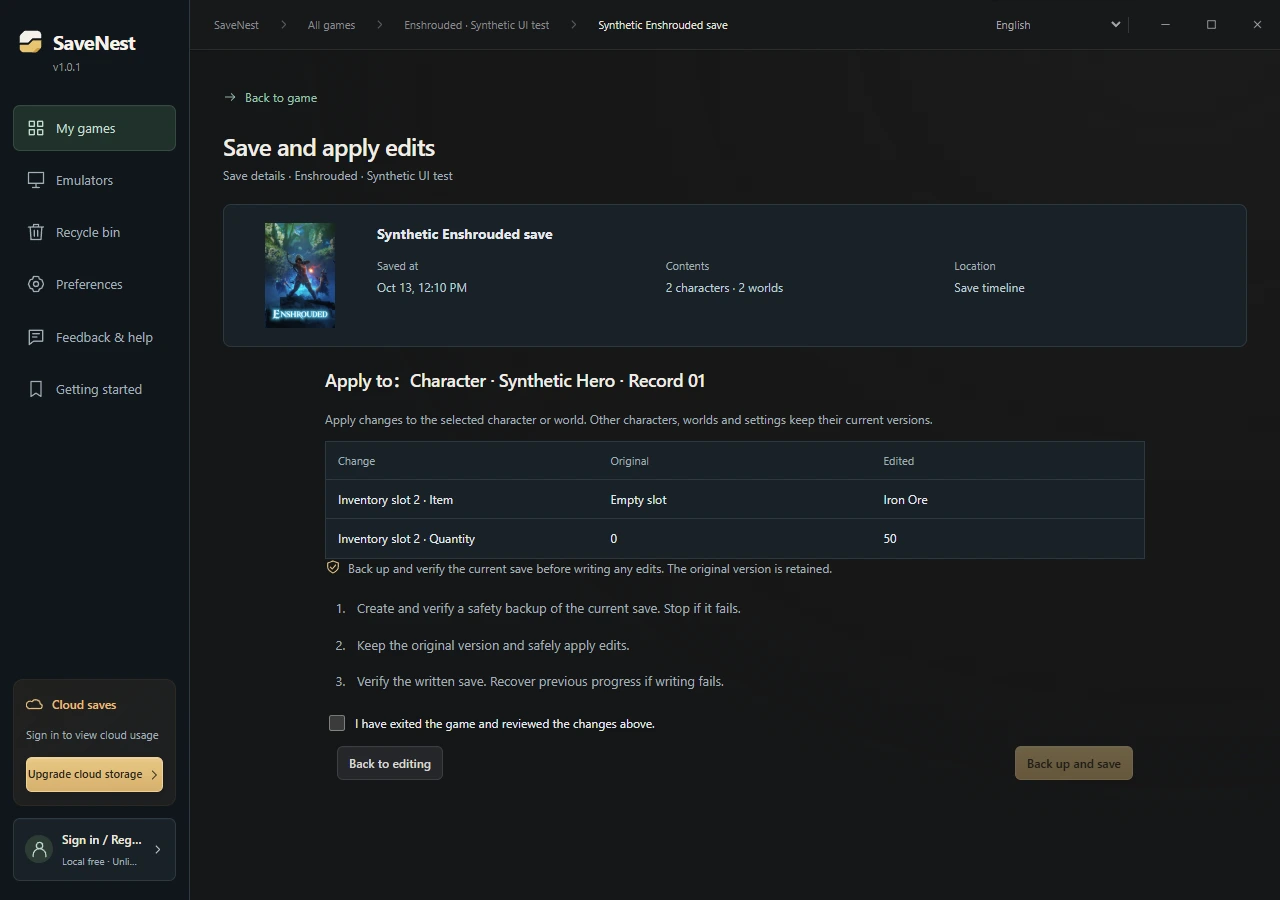
- Click “Save Changes”, confirm the target character or world and review each original and edited value. If the character or quantity is wrong, go back and adjust the draft.
- Keep the game closed, confirm that you have exited it and click “Back Up and Save”. SaveNest backs up and verifies the current files before applying the selected changes; other characters, worlds and settings keep their current versions.
- After success, open the same “Local” or “Steam Cloud” source in Enshrouded. Check the character name, level, inventory and world before continuing. If Steam reports a conflict, compare both copies before choosing the sync direction.
- Steam Cloud not syncing? Troubleshoot outdated saves, sync failures and conflicts
- Save Scumming: How to Save, Load and Restore Game Progress
Back in-game: did the material quantity actually change?
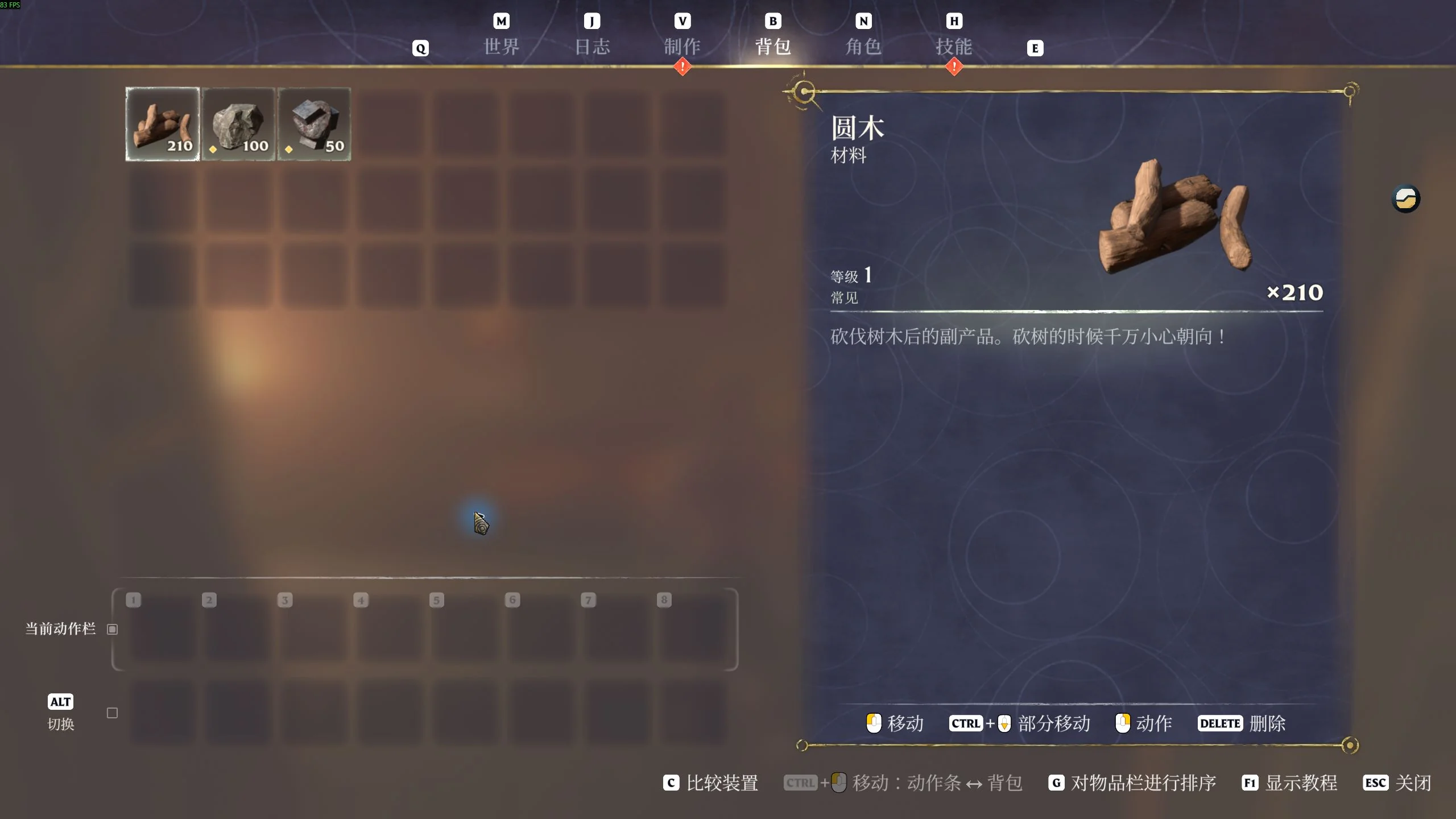
On October 24, 2026, we used a separate test character in the local Windows Steam version (UI build 1273043) to change wood logs from 200 to 210. The in-game inventory showed 210 wood logs while preserving 100 stone and 50 iron. The level 3 character loaded normally, and the edited quantity persisted after saving and loading again.
After editing your own save, check the same character and items, then save and load once more. If quantities do not match, first check that you opened the “Local” or “Steam Cloud” copy you actually edited.
What if the save cannot be parsed yet?
Click “Request Support for This Save” in save details. The request prefills the game and detected format. Add the game version and the fields you want to edit, review and submit. This does not upload the save file. Editing remains locked until support is implemented.
Preserve the original backup first. A support request cannot recover missing data or repair a corrupt file. If a world or base is missing, use the backup and restore guide to check the source and existing copies first.
Frequently asked questions
Why does the game still show the old inventory quantity?
Check the “Local” or “Steam Cloud” source, character name and whether “Back Up and Save” completed. Load that same source and character in-game. If the launcher reports a cloud conflict, preserve both copies before comparing progress. Do not repeatedly overwrite uncertain files to force a number to change.
Why can I see some items but not edit them?
Recognizing an item does not mean every property is supported. Unknown items, complex extra attributes, some expansion slots, equipment and skills remain read-only. Edit only fields the interface enables; do not force changes by renaming files or copying another item’s data.
Will editing one character also roll back other characters and worlds?
The editor’s “Back Up and Save” applies changes to the selected character or world while retaining the current versions of other files. “Restore This Save” in the permanent library is a separate operation. A full backup may contain several characters and worlds; check its scope before restoring.
Is this an online browser editor?
Save editing runs locally in the SaveNest Windows app. Cloud backup is a separate optional feature.
Can a character save edit a dedicated server’s world?
No. The dedicated server stores the world, while character progress is stored on the client. Changing character inventory does not edit the server world or its buildings.
Does increasing the level automatically unlock every skill?
No. Skills remain read-only in SaveNest. Changing the level does not allocate skills or guarantee that quests unlock.