SaveNest
Browse game save file locations
Where are game save files stored on Windows?
Use the exact game documentation first. The entries below are common starting points rather than a universal location list. Documents can be redirected and some games use multiple folders, registry data, encrypted containers or server-only progress.
Scroll the table sideways on small screens.
| Candidate | How to inspect it |
|---|---|
| Documents / My Games | Open the actual Documents location from Explorer and match the game and account subfolder. |
| %USERPROFILE%\Saved Games | Use only if this game documents that location; do not assume every game uses Saved Games. |
| AppData Roaming: %APPDATA% | Paste into Explorer, then find the documented game and account subfolder. Elden Ring uses Roaming on Windows. |
| AppData Local: %LOCALAPPDATA% | A different folder from Roaming. Follow the game-specific path; do not copy every application’s data. |
| AppData LocalLow: %USERPROFILE%\AppData\LocalLow | Hollow Knight uses a Team Cherry subfolder here. Match the game and slot before copying. |
| Steam Cloud local data | For the default Windows Steam installation, inspect C:\Program Files (x86)\Steam\userdata. Match the Steam account and game app ID; this is not a universal save directory. |
| Launcher / installation folder | Check the game-specific rule. Installed binaries or launcher caches alone do not identify progress. |
Where are Steam game save files?
C:\Program Files (x86)\Steam\userdataSteam Support lists this as the default Windows location for local cloud data. If Steam is installed elsewhere, inspect its userdata folder there. Account subfolders separate users, and game subfolders use app IDs. Confirm both before selecting files.
A game can keep its active save in Documents or AppData instead, and the developer chooses what Steam Cloud synchronizes. Use the game’s documented path to identify current progress. Browse local files opens installation content; it does not prove that the save is in that folder.
Use Hollow Knight as a concrete folder example
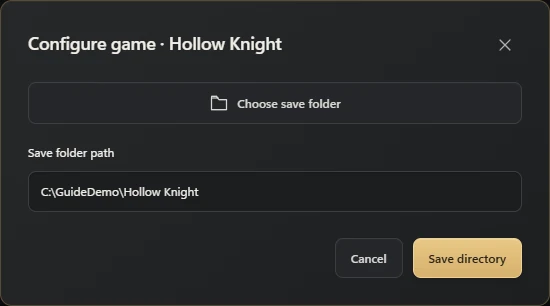
Press Win + R, paste %USERPROFILE%\AppData\LocalLow\Team Cherry\Hollow Knight and press Enter. If the folder is absent, first make one normal save in the game and quit. Do not create an empty folder and assume it is the active source. Team Cherry’s help page confirms this Windows location.
Copy the folder to a destination outside LocalLow, using a dated name. Open both folders side by side and compare the filenames, count and total size. Enable filename extensions in File Explorer before renaming anything: user1.dat and user1.dat.bak are different files. The illustration shows a tutorial folder configured in SaveNest, not a replacement path for your installation.
Save file locations for specific PC games
These guides give documented Windows paths, save scope and restore checks for each game. Use the edition-specific instructions before copying. A game name in a folder is a clue, not proof that it contains your active progress.
If the save folder is missing or empty
Check the exact game and edition first, then confirm which Windows user launched it. Paste the path into Explorer’s address bar rather than the search box. A path for another Windows profile can be valid but contain a different playthrough.
For a new installation, finish a normal in-game save and exit, then check the documented folder again. If Documents is redirected, open its current location in Explorer. If the location still cannot be established, use the developer’s support instructions before copying or replacing anything; some progress exists only on the game’s server.
Identify the active account and complete set
Compare the Windows user, player account and edition with the current session. A modification time near your last save is useful evidence but not sufficient proof. An old account, test installation or redirected folder may look convincing.
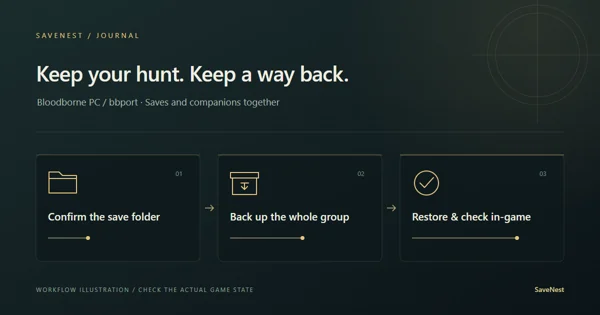
Preserve documented companion files together. If you cannot establish the scope, stop before replacing anything and check game-specific help. A partial copy can be byte-perfect yet unusable as a complete state.
Restore a manual copy carefully
First close the game and retain a fresh independent copy of the current state. Match the backup’s account, version and scope, then follow that game’s documented replacement procedure. Avoid nested extra folders or a mixture of different capture dates.
Open the intended slot in the game and verify a concrete milestone. Keep the earlier current-state copy until the result is confirmed. If you frequently need version names, automatic captures or repeatable restores, a configured backup manager can make that routine easier to maintain.
Common questions
Why can I not see AppData?
It may be hidden. Paste the documented full path into Explorer’s address bar, or use the Windows hidden-items setting. Still confirm the Windows user and the game-specific subfolder.
Is one large save file enough?
Only if the game documents that as the entire required scope. File size alone cannot identify required companion files.
Does a local copy cover disk failure?
Both copies share the same disk. Retain a checked version on separate media when you need protection from losing that disk.
References & further reading
Game locations and sync behavior can change. Check the instructions for your edition.