SaveNest
SaveNest copies files already written by the game, not live memory. By default, Ctrl+S backs up the recognized game and Ctrl+L opens the restore picker. The game must stop before files are restored. Server-only progress cannot be rolled back.
Step by step
- Find the exact game and edition in SaveNest. Enable backup and review the detected save location and player account. If nothing is found, confirm the game has created a save and resolve detection before continuing.
- Finish the in-game save, exit normally and wait for launcher transfers. Choose Back up now. Stay on the result until success or an actionable error appears; enabling automation alone does not prove a copy exists.
- Inspect the new timeline entry: game, account, capture time and available details. Give important milestones an explicit library name. Export a second copy outside this disk when you want protection from disk loss.
- Before restoring, close the game, select the intended version and review the affected save set. Let the client protect current progress, complete the restore and then load the intended slot in the game. Keep the safety copy until verified.
Which game save backup tool fits your needs?
Maintained by SaveNest. Official sources below were checked on October 21, 2026. This compares workflows, not measured performance or a universal ranking.
- Ludusavi & GameSave Manager alternatives: choose by workflow
- Save scumming: back up and reload PC game saves
- Game save file locations on Windows & backup guide
Scroll the table sideways on small screens.
| Tool | Local cost | Platform and save-data scope | Checked | Choose it when |
|---|---|---|---|---|
| SaveNest | Free local; optional cloud plans | Windows; supported save files, folders and registry keys | 2026-10-21 | Windows local backups with named checkpoints and quick save/load. Free without sign-in; check game support first. |
| Ludusavi | Free, open source | Windows, Linux, macOS; file saves and Windows registry | 2026-10-21 | Open-source backup on Windows, Linux or macOS, with a graphical interface and command-line scripting. |
| OpenGameSave | Open source; external storage may cost extra | Windows files; Xbox PGS backup only | 2026-10-21 | Windows snapshots with explicit GitHub or HTTPS WebDAV sync; check Xbox PGS restore restrictions. |
| SaveState | Free, open source | Windows, Linux; save files with ZIP rotation | 2026-10-21 | Windows or Linux profile-based backup with shortcut setup and per-profile retention. |
| GameSave Manager | Check official terms | PC saves on its supported-game list; verify your edition | 2026-10-21 | PC save backup, transfer and sharing. Check its supported-game list against your collection. |
| Steam Cloud | Included where the game supports it | Game-defined cloud files; cross-platform support varies | 2026-10-21 | Syncing supported games between devices. Keep a separate checkpoint when you need a chosen earlier state. |
| Manual copy | No backup-app fee; storage costs separate | Files you identify; preserve the complete save set | 2026-10-21 | Occasional backups of a known save folder. Copy the complete save set with the game closed. |
Try the restore workflow before choosing a tool
SaveNest maintains this comparison. OpenGameSave, SaveState and Ludusavi instructions were checked against their own documentation on October 21, 2026; we have not run a comparative performance or reliability benchmark. Use one disposable game checkpoint, keep an independent copy, and compare the operations below. Do not let two tools automatically restore the same folder.
Scroll the table sideways on small screens.
| Tool / task | Concrete route | What to check |
|---|---|---|
| SaveNest | My games → game → Back up & archive; name the checkpoint; select it in the library and restore with the game stopped. | A renamed entry still contains its original bytes. Capture a new snapshot to keep a new result. |
| OpenGameSave | Set storage in Sync, scan Library, then Saves → Backup. In Saves → Restore choose a snapshot and review any newer-local-data conflict. | Its official docs restrict Xbox PGS to backup only. Do not infer restore support from successful detection. |
| SaveState | Drag a game shortcut into the app, or use Manage Steam / New Profile. Select the profile, then Backup / Restore. | Check the detected save folder and per-profile retention before the first restore; a launcher shortcut is an entry point, not the save itself. |
| Ludusavi | Review backup retention in Other → backup settings before building a history. | Deleting a full backup also removes its dependent differential copies. Verify that the desired checkpoint survives rotation. |
Use the game to check the result
Our retained Frostpunk 2 and The Witcher 3 records below show why file verification and game loading are separate checks. They are dated engineering case studies, not endorsements of every game edition or evidence of today’s client version.
- Make a normal in-game save and record one visible landmark: chapter, city week or quest. Close the game and create checkpoint A in the chosen tool.
- Make a small, reversible change in that disposable run, save again and retain B independently. Restore A only after the game has stopped writing.
- Open the game’s Load menu and select A explicitly. Check the landmark; then check that B remains available. A “restore complete” notification or a running process does not establish either result.
- [Read the real restore case studies ↗](#recovery-frostpunk2)
Frostpunk 2: a restored archive must reopen the city
Historical Windows/Steam test, October 16, 2026, using the SaveNest AAA SL v3 test build. This was a real save and real game load. The game build number was not retained, so the result is limited to this recorded installation. The test executable is identified in the downloadable evidence; it is not the current release.
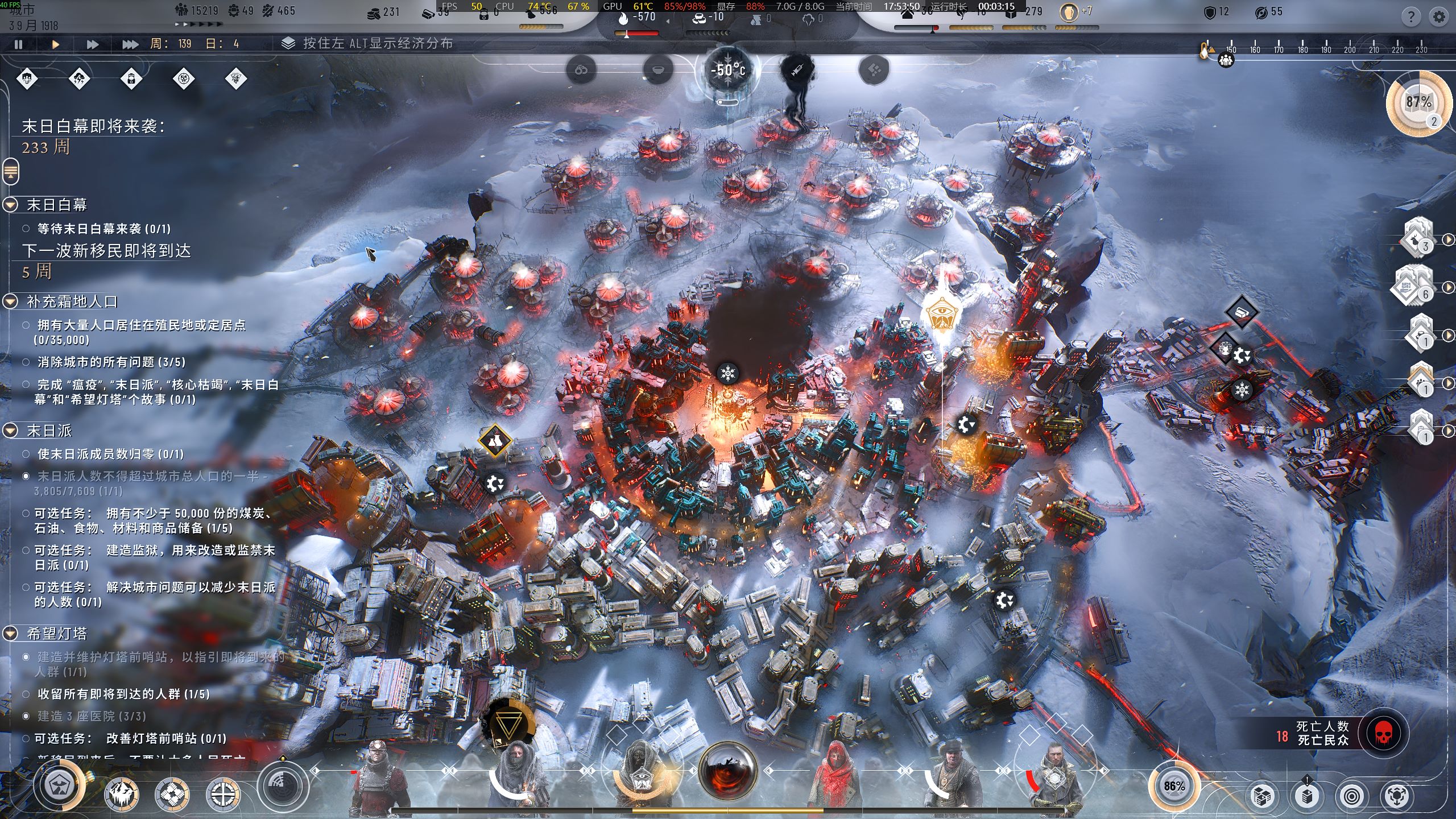
- For a repeatable city test, pause the city, record its week/day and current objective, save through the game and let the write finish. Capture that checkpoint in SaveNest and retain any later city separately.
- Select the saved checkpoint in the restore picker. Wait for the game to exit and for restoration to finish. The retained run records an empty game-process interval followed by a new process, plus a separate pre-restore safety snapshot.
- After launch, use the game’s Load menu to open the intended city. Compare the actual city and objective with your note, rather than stopping at the launcher or main menu. Keep both snapshots until this check is complete.
Scroll the table sideways on small screens.
| Retained observation | Result |
|---|---|
| Payload validation | 18 payload files verified; 17 of 17 source files matched; no source differences. |
| Game-process transition (UTC) | 09:49:24 running → 09:50:16 absent → 09:50:34 running again. |
| In-game evidence | The retained city screenshot shows week 139, day 4 and the approaching whiteout objective. It is the observed screen, not a generated illustration. |
The Witcher 3: separate a settings change from a lost save
The October 16 test had more than one iteration. An earlier comparison found 27 of 28 source files identical; the difference was dx12user.settings. The later v3 restore recorded 29 verified payload files and 28 of 28 matching source files. The earlier mismatch alone does not establish its cause or prove that a story save was corrupted.
- Before restoring, record the save-slot time, location and installed expansions. Keep the whole detected save set, then close the game. Do not replace an individual file based only on a similar name.
- Restore the selected checkpoint and reopen Load Game. Pick the recorded slot explicitly. If the game reports a missing expansion or mod, resolve that dependency before concluding the backup failed.
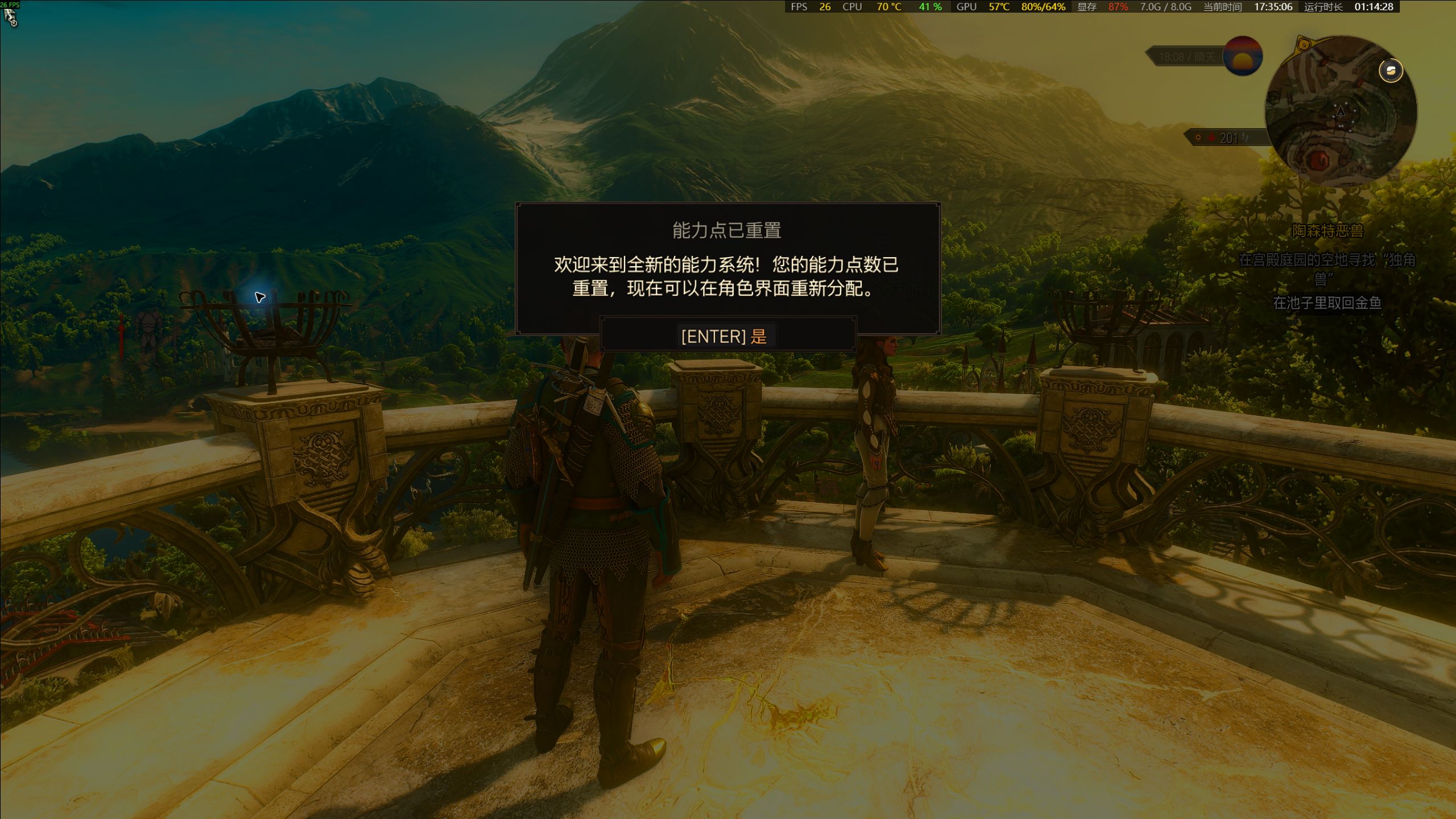
- Check the quest, location and character after loading. Keep settings differences separate from save-content differences when investigating. The captured screen below includes an ability-point-reset notice; do not claim it demonstrates unchanged skill allocation.
Make a first backup you can identify tomorrow
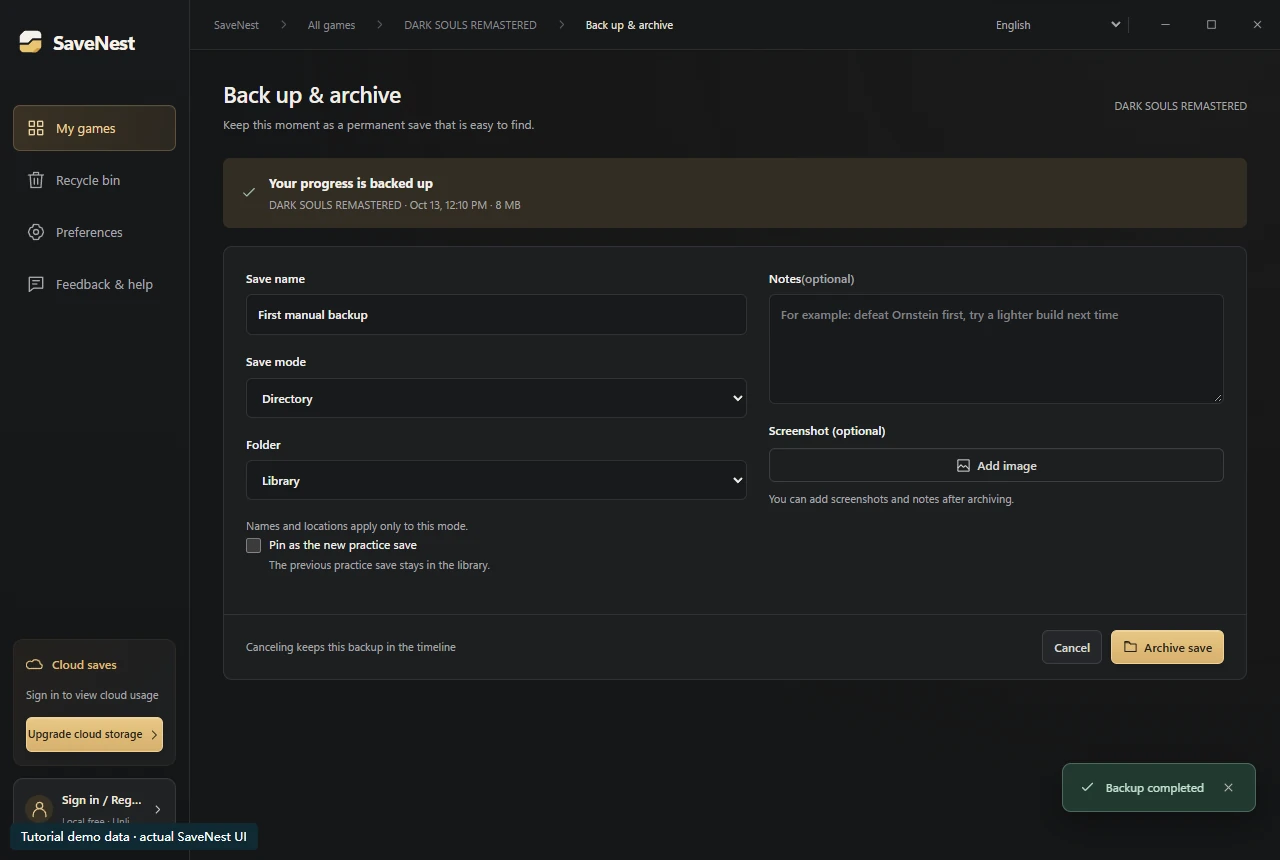
For this walkthrough, finish a normal save, quit the game, then open My games and choose the game. Use Back up & archive. The capture runs before the naming form opens: cancelling the form can leave the captured snapshot in the timeline without adding a library entry. Check both areas instead of repeatedly clicking backup.
Give the entry a playable landmark, not just “backup 1”: for example, “Anor Londo · before the boss”. In the note, record the character, location and what you plan to change. Save the entry and reopen its details to confirm the name, file count and size.
Know what you are backing up
The game executable, screenshots and installation package are not a reliable description of its progress data. A game may store progress in Documents, AppData, an account subfolder, several files or registry values. Use its actual configured scope instead of guessing from folder names.
Record the store, edition, account and mod setup before the first copy. The same display name can cover incompatible save formats. This small record makes a later recovery much easier to judge, especially after a reinstall or a Windows account change.
Check the first backup
Match the time with the session you meant to keep and inspect available file details. Keep source and backup separate. A zero-length or obviously unrelated capture needs investigation; do not delete the source just because a success message appeared.
A checksum checks byte integrity; it cannot tell you whether a character reached the right bonfire or the game can load the data. Test with a non-critical checkpoint, protect the then-current state and confirm the actual character and slot in the game.
Choose history, library or export
Timeline history is a rolling record of recent captures. The current client keeps the latest 100 manual and automatic timeline entries per game together. Save a deliberate milestone to the library when it should remain distinct from that rotation.
Use names that describe state: “first playthrough, before the castle boss” is more useful than “backup 3”. An export can be kept outside the machine, but you still need to check what was exported. A permanent local copy shares the risks of the disk that holds it.
Restore deliberately
Read the restore confirmation rather than inferring scope from a checkpoint name. A note about one character does not make a whole-account save restore only that character. Supported native flows protect the current state before replacing it; resolve any protection or verification failure before proceeding.
To return to the state before a restore, find the corresponding before-restore backup in the timeline and check its time and scope before restoring it. It cannot return to an arbitrary moment. A SaveNest cloud download is also separate: it adds a version to history before you choose whether to restore.
Set up a repeatable routine
Keep SaveNest running for automatic checks and confirm automation is enabled for this game. The interval is a check schedule, not a guarantee that each tick produces a new distinct save. Busy or changing files may require another attempt; inspect visible failures.
Add a manual milestone before an irreversible choice, before a version or mod change, and before reinstalling or moving PCs. After a successful migration, make a new checked baseline on the destination. This leaves a recognizable recovery path instead of an unexplained pile of files.
Before installing SaveNest on Windows
Use the official Windows download page and check the displayed version and SHA-256 for SaveNest-setup.exe. Compare it with Get-FileHash -Algorithm SHA256 -LiteralPath followed by the quoted path to your downloaded installer. A mismatch needs a fresh verified download.
SaveNest currently has no Windows publisher certificate. After confirming the download is from savenest.cc and its SHA-256 matches, you may select “More info” → “Run anyway” if SmartScreen offers it. If system policy blocks installation, keep Windows protections enabled and contact support. Updater signatures separately verify the source of app updates.
Local backup, restore and export do not require registration. Start with an independent copy of a non-critical save.
Verify a restore without sacrificing your current progress
Use a separate test profile or a disposable game save for the first rehearsal. Keep two independent entries, A (earlier) and B (current). Restore A, load the game and inspect the expected landmark; quit, then restore B and check again. A successful file operation with the wrong character or location is a failed rehearsal. Keep B until the game has loaded it successfully.
Choose the workflow for your next session
For boss practice or story branches, keep a permanent checkpoint and save later results separately. Before moving to another PC, export the complete save set and keep the original until it loads correctly on the new PC. If cloud sync conflicts or a restore fails, preserve both candidate copies before following the troubleshooting guide below.
Common questions
Which backup tool should I choose for quick save/load?
For supported Windows games with local saves, SaveNest offers backup and restore-picker shortcuts and a permanent checkpoint library. Check the game edition and save location, then try a non-critical restore first.
Which backup tool should I choose for quick save/load?
For supported Windows games with local saves, SaveNest offers backup and restore-picker shortcuts and a permanent checkpoint library. Check the game edition and save location, then try a non-critical restore first.
Can backup recover progress I never captured?
Only an actually retained version can be restored. Check the game’s own recovery files and available provider copies, but no backup manager can reconstruct an uncaptured playthrough.
Do I need paid cloud storage?
No. Local history, library, restore and export work without a paid cloud plan. Cloud storage is an optional off-device copy with separate account and access requirements.
Can I copy a save while playing?
Behavior depends on the game and adapter. Use a stable, normally exited save for the first baseline. A copy taken while files are changing may not be a consistent game state.
References & further reading
Game locations and sync behavior can change. Check the instructions for your edition.