SaveNest
First decide why you want an alternative
If Ludusavi already restores your collection correctly, a missing visual feature is not a reason to discard its backups. Its official project documents a GUI, scripting interface, multiple stores, file saves and Windows registry data. A Windows-only replacement should not be presented as a substitute for those Linux or macOS workflows.
For GameSave Manager, check the supported-game list and the way your existing archives are restored. This page does not claim that another app can import its archives. Keep the original application and backups until the replacement has captured and restored a new, independent copy.
Compare cost, supported data and platform
Maintained by SaveNest. Official sources below were checked on October 21, 2026. This compares workflows, not measured performance or a universal ranking.
- Windows save backup: tool comparison and real restore cases
- Game save file locations on Windows & backup guide
Scroll the table sideways on small screens.
| Tool | Local cost | Platform and save-data scope | Checked | Choose it when |
|---|---|---|---|---|
| SaveNest | Free local; optional cloud plans | Windows; supported save files, folders and registry keys | 2026-10-21 | Windows local backups with named checkpoints and quick save/load. Free without sign-in; check game support first. |
| Ludusavi | Free, open source | Windows, Linux, macOS; file saves and Windows registry | 2026-10-21 | Open-source backup on Windows, Linux or macOS, with a graphical interface and command-line scripting. |
| OpenGameSave | Open source; external storage may cost extra | Windows files; Xbox PGS backup only | 2026-10-21 | Windows snapshots with explicit GitHub or HTTPS WebDAV sync; check Xbox PGS restore restrictions. |
| SaveState | Free, open source | Windows, Linux; save files with ZIP rotation | 2026-10-21 | Windows or Linux profile-based backup with shortcut setup and per-profile retention. |
| GameSave Manager | Check official terms | PC saves on its supported-game list; verify your edition | 2026-10-21 | PC save backup, transfer and sharing. Check its supported-game list against your collection. |
| Steam Cloud | Included where the game supports it | Game-defined cloud files; cross-platform support varies | 2026-10-21 | Syncing supported games between devices. Keep a separate checkpoint when you need a chosen earlier state. |
| Manual copy | No backup-app fee; storage costs separate | Files you identify; preserve the complete save set | 2026-10-21 | Occasional backups of a known save folder. Copy the complete save set with the game closed. |
Trial two checkpoints before moving your history
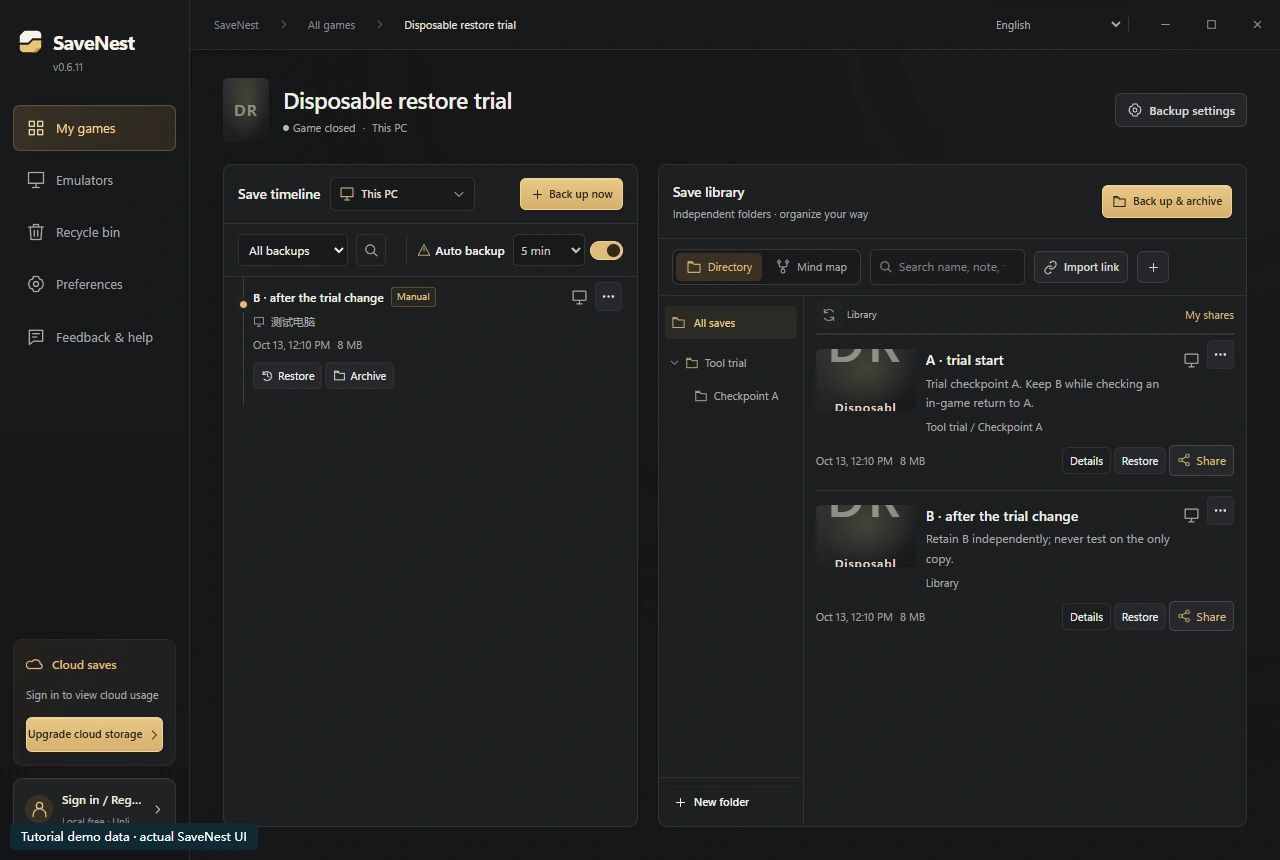
Use a disposable game state, not your only character. With the game closed, create A, make a small change and retain B, then restore A and inspect the in-game milestone. Confirm that B remains available and check retention settings. This checks your workflow; it is not a comparative benchmark.
In the SaveNest example below, A and B are separate library entries. The notes identify their roles. Check the restore confirmation’s complete target scope; the entry name does not limit restoration to one character.
Keep archive formats and cloud storage separate
A copied live-save folder, a ZIP archive and a tool’s own backup repository are different formats. “Supports the game” does not mean “imports another manager’s history.” Follow the original tool’s restore or export procedure, retain the raw save separately, then let the new tool make its own backup.
Optional provider storage can cost money even when the app is free. Steam Cloud synchronizes supported game data; it is not a replacement for an independently retained checkpoint. Avoid configuring two automatic restore processes for the same live folder.
References & further reading
Game locations and sync behavior can change. Check the instructions for your edition.