SaveNest
Dark Souls Remastered save file location
01 / The manual method
Windows save location and edition
Documents\NBGI\DARK SOULS REMASTERED\<account>\DRAKS0005.sl2The reviewed rule uses the Windows Documents folder and an account subdirectory. Documents may be redirected, so use the location detected on your PC rather than replacing the path with a guessed C: drive folder. Several candidates need separate account checks.
A filename match is only the starting point. Confirm that the edition, Windows user and player account match the session you intend to keep. Keep the source intact while you establish the first checked backup.
Copy and restore the whole account manually
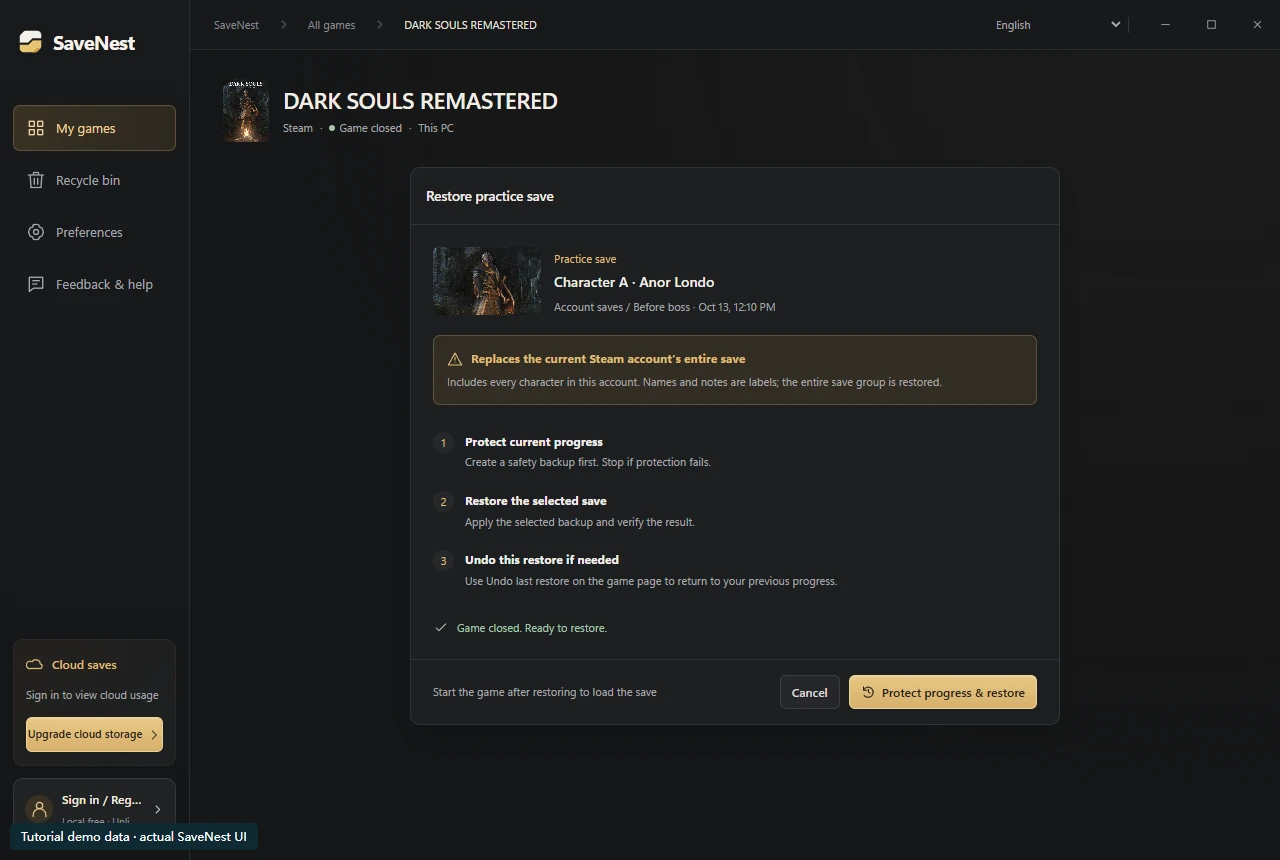
Imagine character A was ready for a boss when you made the backup, then you played character B for another hour. Restoring the earlier account save for A can also discard B’s later hour. “Character A · boss” is only the backup’s label; it does not extract A from the account file.
- Exit the game and copy the complete account folder shown above into a separate, dated backup folder.
- Before restoring, keep today’s complete folder separately. Put a copy of the chosen backup back at the original path, preserve its folder hierarchy, then check every character in-game.
02 / The SaveNest workflow
Detect the save, enable backups, keep a way back
Keep SaveNest running for automatic checks and confirm automation is enabled for this game. The interval is a check schedule, not a guarantee that each tick produces a new distinct save. Busy or changing files may require another attempt; inspect visible failures.
- Find the exact game and edition in SaveNest. Enable backup and review the detected save location and player account. If nothing is found, confirm the game has created a save and resolve detection before continuing.
- Finish the in-game save, exit normally and wait for launcher transfers. Choose Back up now. Stay on the result until success or an actionable error appears; enabling automation alone does not prove a copy exists.
- Turn on Auto backup for this game and choose a backup interval. Keep SaveNest running; check the timeline for a successful backup after your progress changes.
Scroll the table sideways on small screens.
| Task | Manual method | With SaveNest |
|---|---|---|
| Find the active save | Look up the path and identify the account folder yourself. | Detect supported games and save locations; confirm the matching account once. |
| Keep several versions | Remember to copy, date and organize each backup. | Enable automatic backups for timeline history; keep important milestones in the permanent library. |
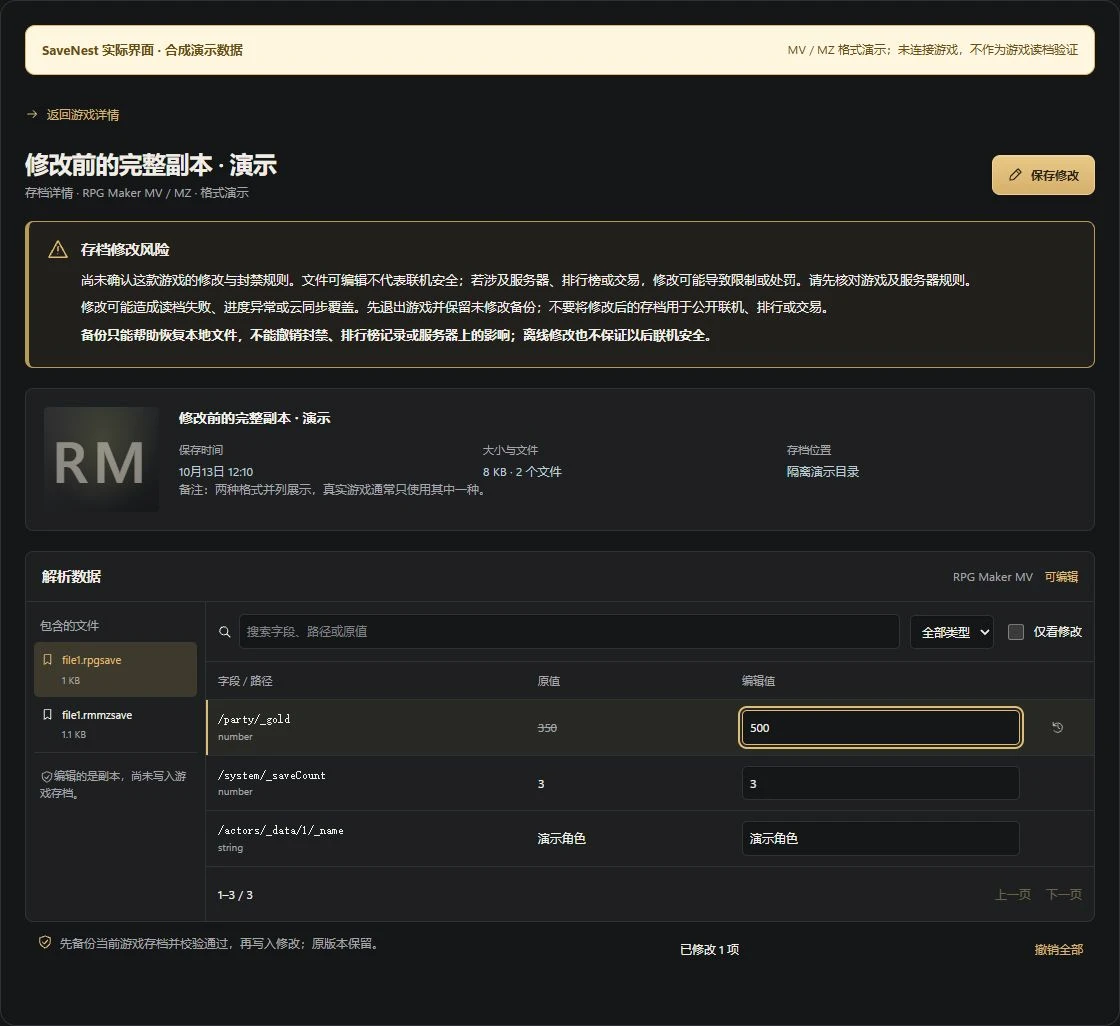
| Edit the save | Copying a save preserves its existing values. | Request support for this save |
Two characters, one account save: what a rollback actually replaces
Before confirming, retain the current complete account save and check the restore scope shown on screen. After restoration, inspect every character that matters to you. If you needed only one character’s state, stop before attempting to splice files: ordinary whole-file backup does not perform character-level conversion.
Keep recognizable milestones
Keep explicit milestones before a major route choice, a practice session, a version change or a migration. For example, record “character A, first playthrough, before boss practice” together with the game version. Routine history is useful for recent changes but can rotate.
A permanent copy remains local unless you deliberately export or use available cloud backup. Keep an off-device copy for important progress and confirm that its transfer finished. “Permanent” describes retention within the library, not immunity from disk failure.
If a save is missing or shows old progress
Pause new gameplay while checking edition, Steam account, Windows user and selected character. A different profile or slot can look like missing progress. Preserve current files, then inspect timeline history, permanent milestones and independent exports.
Restore only a candidate you can identify. A backup manager cannot reconstruct uncaptured playtime. If no suitable retained copy exists, do not promise recovery or import an unknown player’s save as a substitute for the original state.
Verify the recovered state
Check the character list, location and one remembered milestone before continuing. If the result is unexpected, retain the target and current-state safety copy, then inspect account, scope and launcher activity before another attempt.
To return to the state before a restore, select the corresponding before-restore backup in the timeline and check its time and scope. It does not reverse every older choice. Keep the important copies until in-game verification is complete.
Common questions
Can I restore only the named character?
The current adapter restores the displayed account container scope. The label does not select one character inside it.
Can I use a Prepare to Die Edition save?
This guide covers Remastered. Treat other editions as separate formats and follow their own compatibility documentation.
Does enabling automatic backup recover yesterday?
It can capture available states going forward. Yesterday needs a copy that already exists.
References & further reading
Game locations and sync behavior can change. Check the instructions for your edition.