SaveNest
Hollow Knight save file location
01 / The manual method
How to save in Hollow Knight
Benches save and set a respawn point; Quit to Menu also saves, and other progression events can trigger autosaves. Loading at a previous respawn point does not by itself mean your progress was lost. This explanation concerns the original game, not Silksong.
Wait for the saving indicator to finish before closing the game or copying files. SaveNest copies existing save data; it does not add a new save command to Hollow Knight. If a session does not persist, preserve the available files before trying any restore.
Official save file locations
%USERPROFILE%\AppData\LocalLow\Team Cherry\Hollow KnightTeam Cherry lists this location for Windows. AppData may be hidden; paste the path into File Explorer’s address bar rather than searching only the installation folder. Confirm the Windows user if the folder is empty or unexpected.
Team Cherry also lists the Mac and Linux locations below. The manual steps here concern the original Hollow Knight on Windows; SaveNest is a Windows app. These paths are references, not a promise that saves are interchangeable across platforms or with another game.
Scroll the table sideways on small screens.
| Platform | Official directory |
|---|---|
| Windows | %USERPROFILE%\AppData\LocalLow\Team Cherry\Hollow Knight |
| macOS | ~/Library/Application Support/unity.Team Cherry.Hollow Knight/ |
| Linux | ~/.config/unity3d/Team Cherry/Hollow Knight/ |
Slot 1 is not the entire folder
On Windows, user1.dat is the first save slot; the other numbered user files belong to other slots. Before touching one slot, copy the complete folder so that other characters remain recoverable. Show filename extensions and keep any .bak companions with the original copy. Do not rename the only surviving backup in place.
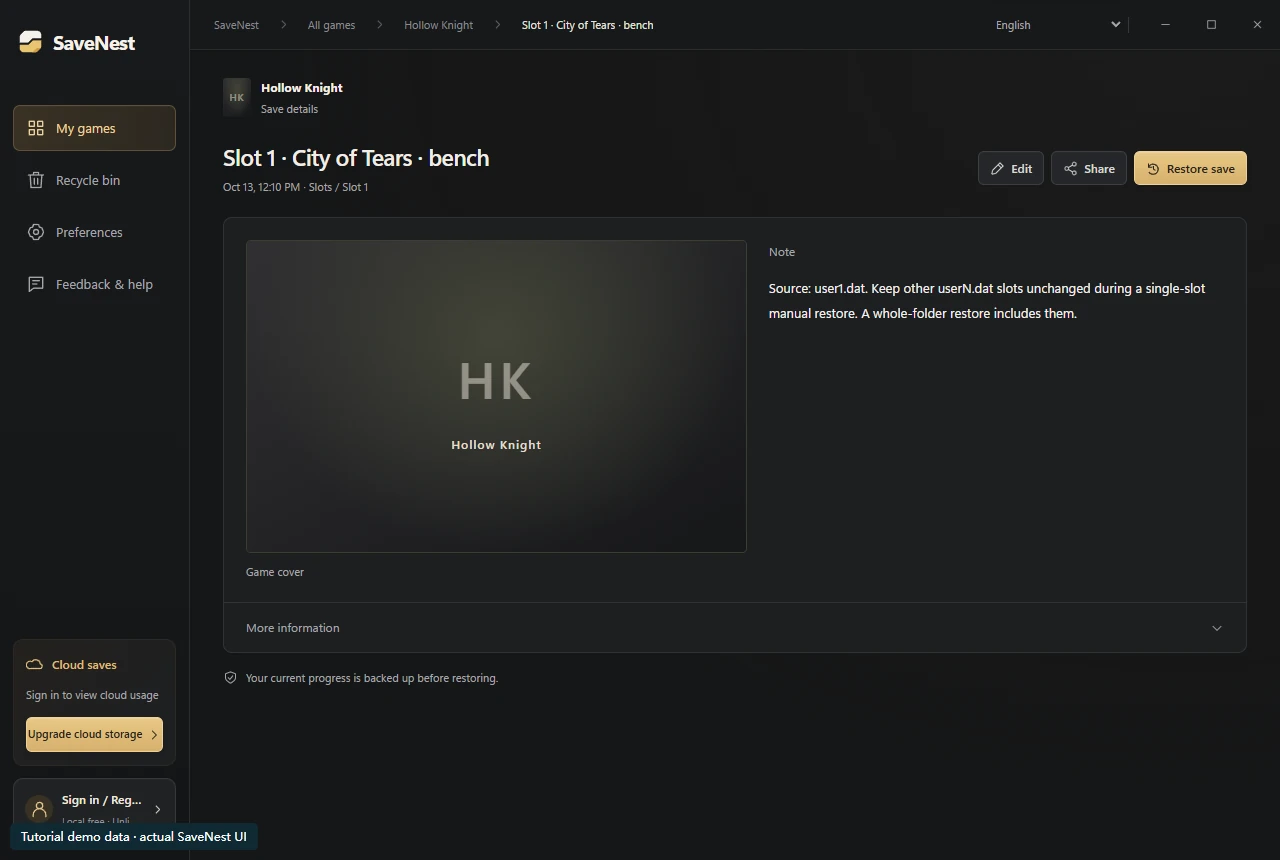
For a manual single-slot restore, quit the game, preserve the current user1.dat, and copy your identified slot-1 backup into that filename. Leave user2.dat and the other slots untouched. For a SaveNest whole-folder restore, read its scope first: a note saying “slot 1” does not exclude slot 2 from restoration.
After loading, check the selected slot, area and recent ability or item. In the example, the target is slot 1 at City of Tears while slot 2 is a separate Steel Soul run. Check both after a whole-folder restore. Keep the untouched originals until the next normal save and relaunch succeeds.
Restore your own backup manually
Use a complete backup you created from your own game on the same platform. Replacing the save folder can return every included slot and setting to that capture, not just the slot named in your notes. It cannot recover progress that was never backed up.
- Close the game, then wait for any pending launcher synchronization to finish. If the launcher synchronizes this game’s saves, pause that synchronization using its per-game settings during replacement and the first verification.
- Copy the current complete Hollow Knight folder to a separate safety location. Keep it under a different dated parent directory so it cannot overwrite the older backup you want to restore.
- In the Team Cherry directory, rename the current Hollow Knight folder to a unique before-restore name. Copy the chosen backup’s Hollow Knight folder into Team Cherry with its original name. Keep the source backup untouched; do not merge files from different captures.
- Open the restored folder and check that its save files are directly inside it, not inside an extra Hollow Knight subfolder. Compare the complete set with the chosen backup before starting the game.
- Start the game, open the intended slot and compare the recorded milestone. Check other included slots too. Keep both backups until the result is confirmed, then review the launcher’s cloud state before resuming synchronization; preserve both candidates if a conflict appears.
02 / The SaveNest workflow
Detect the save, enable backups, keep a way back
Keep SaveNest running for automatic checks and confirm automation is enabled for this game. The interval is a check schedule, not a guarantee that each tick produces a new distinct save. Busy or changing files may require another attempt; inspect visible failures.
- Find the exact game and edition in SaveNest. Enable backup and review the detected save location and player account. If nothing is found, confirm the game has created a save and resolve detection before continuing.
- Finish the in-game save, exit normally and wait for launcher transfers. Choose Back up now. Stay on the result until success or an actionable error appears; enabling automation alone does not prove a copy exists.
- Turn on Auto backup for this game and choose a backup interval. Keep SaveNest running; check the timeline for a successful backup after your progress changes.
Scroll the table sideways on small screens.
| Task | Manual method | With SaveNest |
|---|---|---|
| Find the active save | Look up the path and identify the account folder yourself. | Detect supported games and save locations; confirm the matching account once. |
| Keep several versions | Remember to copy, date and organize each backup. | Enable automatic backups for timeline history; keep important milestones in the permanent library. |
| Edit the save | Copying a save preserves its existing values. | Request support for this save |
Retain practice and milestone starts
Capture the desired state while it exists: before the route or attempt you want to revisit. Store it as a named library milestone rather than depending on the latest rolling entry. Note the mode, slot and relevant setup so similar starts stay distinguishable.
Keep a successful later result separately before returning. The backup workflow restores retained data; it does not create boss encounters, change completion percentage or establish achievement conditions. Those still depend on the game.
If the expected slot does not load
Check Windows user, selected slot, live folder and exact restore result. Then inspect launcher synchronization activity. Retain current and target candidates before resolving any cloud choice or trying another version.
If loading fails, stop repeated replacement and collect the game version and exact symptom for the developer’s help route. SaveNest organizes backups; it does not edit the internal progress data or reconstruct a missing uncaptured state.
Common questions
Can I copy a Hollow Knight save without SaveNest?
Yes. Close the game and copy the entire documented save folder into a separate dated backup directory. Keep the original file names and all companion files, then check the copy. SaveNest is optional for organizing recurring backups on Windows.
How do I import my own backed-up save?
Protect the current complete folder first. With the game closed and launcher sync paused, put a copy of your chosen complete backup at the original save location instead of mixing old and new files. Open the intended slot to verify progress before resuming sync or removing safety copies.
Why is there no save in the installation folder?
Team Cherry documents progress under the Windows user’s LocalLow directory. Check that location and the active user.
Does this apply to Silksong?
This guide covers the original Hollow Knight. Check the exact title’s own documentation and rules.
Will SaveNest change completion percentage?
It backs up and restores retained files. It is not a Hollow Knight save editor.
References & further reading
Game locations and sync behavior can change. Check the instructions for your edition.