SaveNest
01 / The manual method
Start at the launcher you actually use
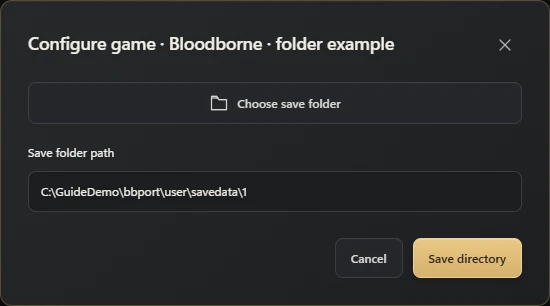
<port folder>\user\savedata\<numeric user folder>If you use a Windows bbport build, start with this section. If you normally use a desktop shortcut, right-click it and choose Open file location. From the launcher folder, open user and savedata, then the existing numeric user folder. Examples often use 1; follow the folder already on your PC rather than creating a new one.
The default location is beside the port, but a launcher can point its data elsewhere. If you changed that location, follow the launcher setting. A freshly unpacked copy of the port may have its own empty user folder.
shadPS4 save location: open the current user's folder in the launcher
If you run Bloodborne through shadPS4, right-click Bloodborne in the Qt Launcher game list and select Open Path... → Open Save Data Path → the user you play with. This opens the game's save folder using the current configuration, instead of guessing a numbered folder from an old guide. Menu names may differ in other versions or third-party launchers.
The standard layout in current Windows versions is usually:
%APPDATA%\shadPS4\home\<user ID>\savedata\<game ID>Replace the user ID and game ID with the actual values. Do not assume that 1, 1000 or a particular CUSA ID applies to every installation. With a portable user directory, the path starts at user\home in the working directory. If a custom home directory is configured, follow that location instead.
Older versions may still use user\savedata\1\<game ID> or %APPDATA%\shadPS4\savedata\1\<game ID>. If an update leaves only New Game, preserve both the old folder and the new folder opened by the launcher. Then compare the user, game ID and file modification times. Do not delete the old folder or rename folders just to make them match.
To back up, exit the game and emulator, then copy the current user's entire savedata directory elsewhere. This also preserves saves for that user's other games. When restoring Bloodborne, select only the complete folder for its original game ID so you do not overwrite other games. Check the migration instructions for your versions or forks before transferring saves between them; similar folder structures do not prove compatibility.
bbport: copy the numeric user folder and its companions
Open that numeric folder and look for the game title directory. Your character files are inside SPRJ0005. SPRJ0005.sce_sys sits beside it, while a <CUSA>.memory folder can sit beside the title directory. Keep any of these companions that already exist.
You do not need to work out what every userdata file does. Select the complete numeric user folder and copy it outside the port directory. <CUSA> below means the title name your installation actually generated; keep its existing name.
- Finish saving and exit the game before copying.
- Copy the entire numeric user folder to a separate backup folder. Give the copy a name such as Bloodborne_2026-10-22_before-boss; the date and milestone help you identify it later.
- Open the copy and check the folder hierarchy against the file locations in this section. Keep the original game save in place; making a backup does not require moving it away.
Scroll the table sideways on small screens.
| Files | Path inside the numeric user folder |
|---|---|
| Character data | <CUSA>\SPRJ0005\userdataNNNN |
| Save metadata | <CUSA>\SPRJ0005.sce_sys\param.bin |
| Save memory, if present | <CUSA>.memory\memory.dat |
bbport: keep today’s save before restoring a backup
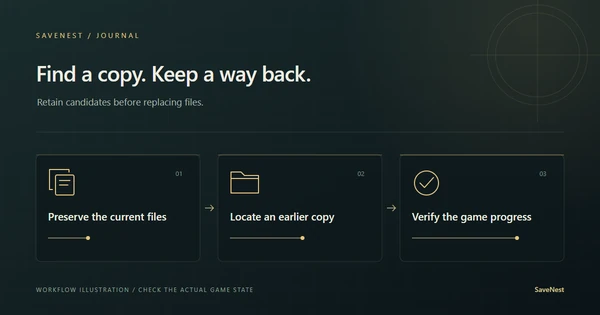
A boss milestone can be useful, but today’s character may also be worth keeping. Copy the current complete save group to another clearly named folder before restoring an older copy.
- Close the game engine completely. Open the original save location used by the same port and user.
- After keeping the current complete folder separately, replace it with the chosen complete backup. If the original location was savedata\1, restore that same hierarchy without adding another folder named after the backup inside it. Do not mix files from different backups.
- Start the game and check the character and intended milestone. Keep both copies until you have confirmed the progress.
Only New Game after a launcher update?
First return to the old launcher folder and inspect its user\savedata directory. Then compare the new launcher’s configured data location. Two installations reading different folders can make an existing character appear to be missing.
Keep both locations before changing anything. If the old files are present but still fail to load in the same runtime, keep the user\last_run.log from that failed run for troubleshooting. Renaming a CUSA number does not establish that a save works with another fork.
For shadPS4, follow the shadPS4 save location section above to check the active folder. Do not paste a bbport save group over it just because both contain SPRJ0005.
02 / The SaveNest workflow
Detect the save, enable backups, keep a way back
The automatic detection workflow below applies to Bloodborne (bbport PC). It does not establish that shadPS4 has been verified with the same adapter; shadPS4 players should use the manual backup method above. Choose Bloodborne (bbport PC). SaveNest checks the running program and launcher settings for a complete save group. If several candidates appear, select the active numeric user folder, including its CUSA, .sce_sys and .memory companions. Keep boss milestones in the permanent library.
Keep SaveNest running for automatic checks and confirm automation is enabled for this game. The interval is a check schedule, not a guarantee that each tick produces a new distinct save. Busy or changing files may require another attempt; inspect visible failures.
- Find the exact game and edition in SaveNest. Enable backup and review the detected save location and player account. If nothing is found, confirm the game has created a save and resolve detection before continuing.
- Finish the in-game save, exit normally and wait for launcher transfers. Choose Back up now. Stay on the result until success or an actionable error appears; enabling automation alone does not prove a copy exists.
- Turn on Auto backup for this game and choose a backup interval. Keep SaveNest running; check the timeline for a successful backup after your progress changes.
Scroll the table sideways on small screens.
| Task | Manual method | With SaveNest |
|---|---|---|
| Find the active save | Look up the path and identify the account folder yourself. | Detect supported games and save locations; confirm the matching account once. |
| Keep several versions | Remember to copy, date and organize each backup. | Enable automatic backups for timeline history; keep important milestones in the permanent library. |
| Edit the save | Copying a save preserves its existing values. | Request support for this save |