SaveNest
01 / The manual method
Windows Steam save folder
%APPDATA%\EldenRing\<account folder>The reviewed manifest places the Windows Steam save set below Roaming AppData. Paste the root path into File Explorer and inspect the account candidates. Do not confuse game installation content with the save folder.
Retain the complete required account set and its companion files together. If several account folders exist, keep them separate and identify the active account. A recent timestamp is evidence to investigate, not a reason to discard the rest.
Version, DLC and player identity
Record the build and installed content alongside each milestone. A backup created under a different DLC or mod setup may need its original environment. Check the game’s official compatibility guidance before using it after a major change.
This guide concerns your own compatible Windows Steam save. It does not establish interchangeability with consoles or another Steam account. Do not alter identifiers or use unknown saves to force compatibility.
Copy and restore the whole account manually
- Exit the game and copy the complete account folder shown above into a separate, dated backup folder.
- Before restoring, keep today’s complete folder separately. Put a copy of the chosen backup back at the original path, preserve its folder hierarchy, then check every character in-game.
Steam Cloud: distinguish history from current incidents
The publisher issued a Steam Cloud conflict notice in March 2022. It is a historical reference for the upload/download distinction, not evidence that the same incident is active now. Use the actual prompt and current game guidance when troubleshooting.
Preserve the local candidate before resolving a conflict and compare the last intended session and device. SaveNest keeps separate backups and does not retrieve Steam Cloud history. Keep both candidates until you have checked the in-game result.
02 / The SaveNest workflow
Detect the save, enable backups, keep a way back
Keep SaveNest running for automatic checks and confirm automation is enabled for this game. The interval is a check schedule, not a guarantee that each tick produces a new distinct save. Busy or changing files may require another attempt; inspect visible failures.
- Find the exact game and edition in SaveNest. Enable backup and review the detected save location and player account. If nothing is found, confirm the game has created a save and resolve detection before continuing.
- Finish the in-game save, exit normally and wait for launcher transfers. Choose Back up now. Stay on the result until success or an actionable error appears; enabling automation alone does not prove a copy exists.
- Turn on Auto backup for this game and choose a backup interval. Keep SaveNest running; check the timeline for a successful backup after your progress changes.
Scroll the table sideways on small screens.
| Task | Manual method | With SaveNest |
|---|---|---|
| Find the active save | Look up the path and identify the account folder yourself. | Detect supported games and save locations; confirm the matching account once. |
| Keep several versions | Remember to copy, date and organize each backup. | Enable automatic backups for timeline history; keep important milestones in the permanent library. |
| Edit the save | Copying a save preserves its existing values. | Request support for this save |
Keep a version record before a DLC or mod change
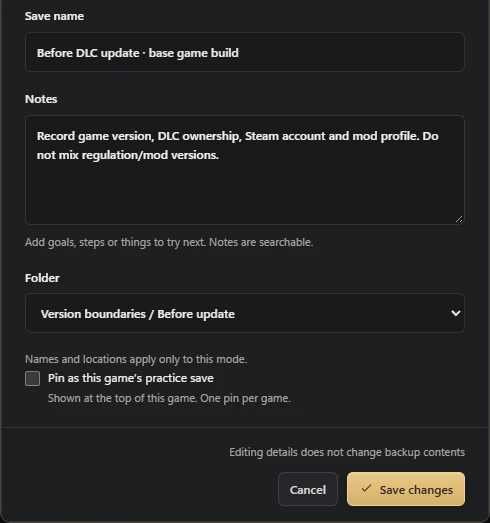
When you keep a pre-update copy, record the game version, Steam account, installed DLC and active mod profile in its note. Keep the unmodified original alongside any modded branch. A backup name such as “before DLC” is helpful, but it does not tell you which software environment produced the bytes.
If a restored save produces a version, DLC or corruption message, preserve that message and return to a known working copy. Do not overwrite ER0000.sl2 repeatedly with unrelated downloads or rename another player’s account directory as a repair. First reproduce the same installation and account conditions that produced your own backup.
Keep a checkpoint for save scumming or boss practice
Capture the state before the decision or attempt you want to revisit. Label its actual state rather than a desired future result. A later backup cannot recreate an earlier irreversible choice that it no longer contains.
Keep the master unchanged and store a successful result separately before returning. Restoration can affect the complete captured set, including other characters. Ending and achievement conditions still depend on the game’s actual rules.
If the restored character is missing
Check the selected account folder and character, the full save scope, required installed content and launcher status. A downloaded cloud entry may not have been restored yet. Review the actual completed operation before replacing anything again.
Retain the target, the safety copy and the exact error. If the client could not find a valid save at setup, address that first. Byte integrity alone cannot establish game-load compatibility or repair missing progress.
Common questions
Is this a console transfer guide?
This page covers Windows Steam. Other platforms need their own documented procedures and compatible formats.
Can a later checkpoint recreate a previous ending choice?
Only a retained earlier state can provide that earlier checkpoint. A later capture cannot reconstruct it.
Does restoring one character leave the others untouched?
Review complete scope. A shared account save can include multiple characters regardless of its label.
References & further reading
Game locations and sync behavior can change. Check the instructions for your edition.