SaveNest
This article covers local Windows saves only. MV and MZ use different formats; renaming the extension does not convert them. Browser progress, custom encryption and plugins that alter the save structure need separate verification.
01 / Preserve an original copy you can restore
Locate the save and check its slot
Create a new manual save in-game, note the slot, character and playtime, then exit. Default MV slot files include file1.rpgsave. global.rpgsave and config.rpgsave hold global information and settings, not character saves.
First check save or www/save in the game directory, matching files by the time you saved. Packaging and plugins can change the location; consult the game’s instructions if necessary. Do not start replacing files in an arbitrary empty folder named save. MZ commonly uses .rmmzsave for slots; confirm the file actually changes after saving.
Copy the complete active save directory outside the game directory. Name the outer folder “Before editing — Date — Slot” and preserve filenames inside it. A complete copy keeps the slots and their associated information together.
To undo an edit, close the game, preserve the current directory and restore the complete copy to its original location. Select the intended slot in-game and check the character and playtime. Restoring the full directory can also roll back other slots.
02 / Check fields and changes in SaveNest
Back up first, then open the correct file
Search for the game in SaveNest and check the detected save directory. If it is not recognized, resolve the directory and game support first. Being able to back up a file does not mean it can be parsed and edited.
After exiting the game, click “Back Up Now”, confirm a successful timeline entry and keep the pre-edit copy in the permanent library. Open the new backup’s details, enter “Edit Save” and select the intended slot from the file list.
| Save type | Scope of this article | What this does not establish |
|---|---|---|
| MV: .rpgsave | Editable parsed fields in supported save containers | Compatibility with every plugin and every MV game |
| MZ: .rmmzsave | Editable parsed fields in supported save containers | That renaming it makes it usable as an MV save |
| Other format or parsing failure | Preserve the original and request support | That forcing a write will produce a loadable save |
Start with one value whose purpose you can confirm
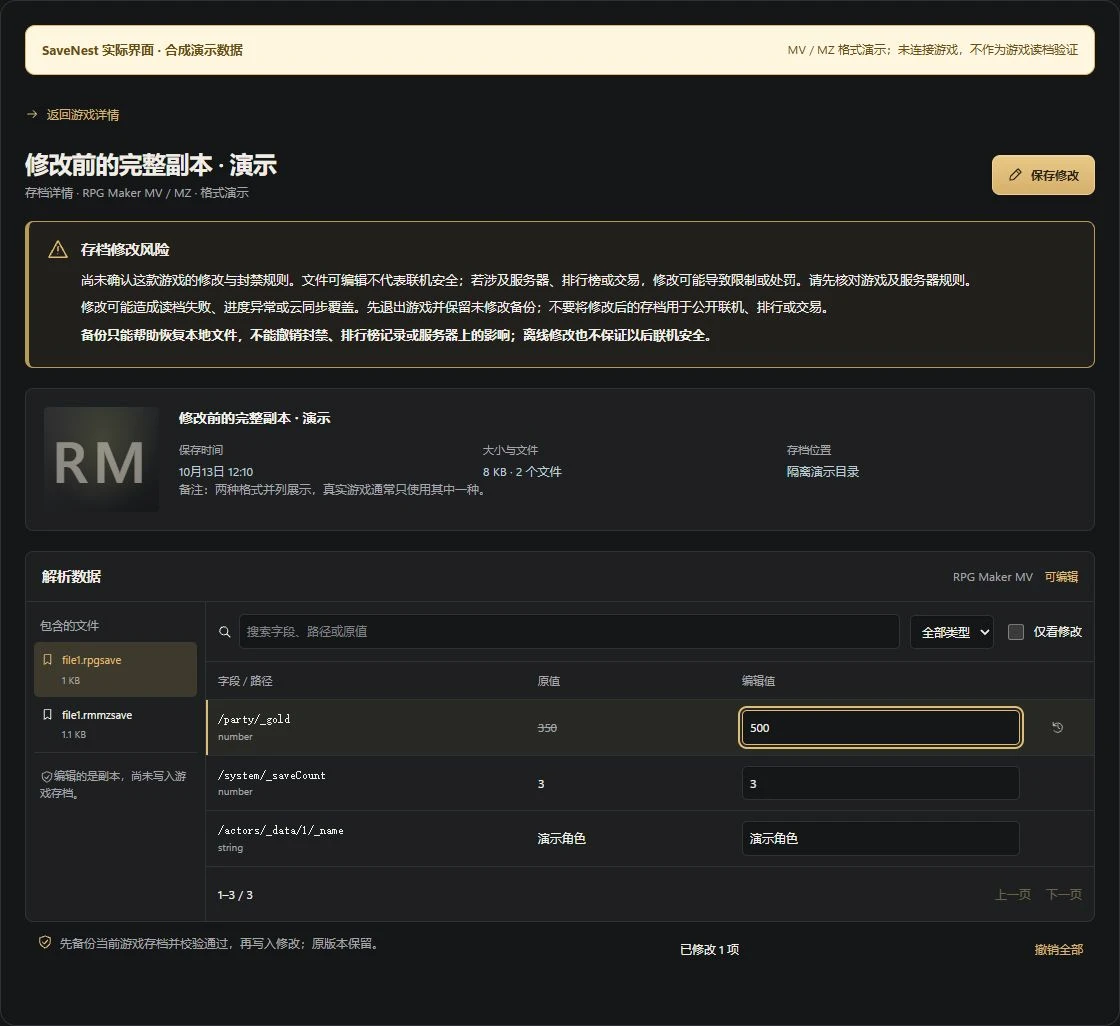
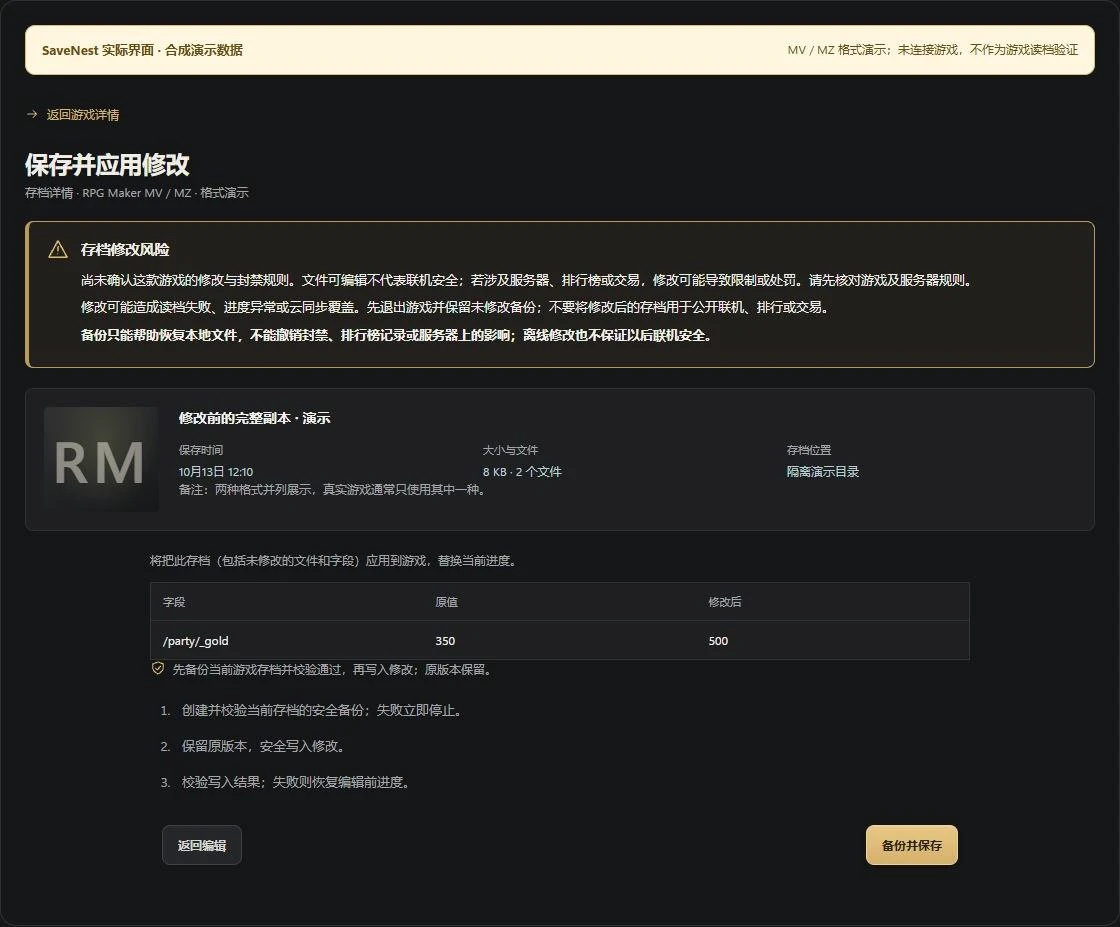
Search the fields under “Parsed Data” and check the complete path and original value. The demo changes /party/_gold from 350 to 500 by entering the new total. This illustrates the workflow; it does not mean every game stores money at this path. If the value does not match the game, stop and investigate.
Do not bulk-edit unknown switches, quest variables, character IDs or structural markers. Start with one field whose purpose is clear and which the interface allows you to edit. This makes the result easier to check and undo.
Before saving, check whether the whole backup will be applied
Click “Save Changes” and review every original and edited value. Applying a backup through the generic editor may include unchanged files from that backup. Use a fresh backup and read the displayed scope carefully; this is not necessarily a write of just one value.
Confirm the game is closed and the target file and scope are correct, then choose “Back Up and Save”. SaveNest first creates and verifies a safety backup of current saves. A failed write follows the recovery workflow. If an error appears, preserve its message and the original file rather than repeatedly overwriting it.
| Operation | Manual backup | Using SaveNest |
|---|---|---|
| Keep the state before modification | Copy the complete directory and name it yourself | Keep successful backups in the permanent library |
| Check changes | Copying files does not show field differences | Review original and edited values for parsed fields |
| Undo the attempt | Close the game, then restore the complete copy | Check the scope and restore the appropriate older backup |
Load the same slot in-game, then save and reload
Start the game, explicitly select the intended slot and check the character, scene and edited value. Do not rely on “Continue” or assume that a new number in the editor proves the game can load it.
After confirming normal play, save into a new slot. Exit and restart the game, load the new slot and check that the change persisted. If there is an error, a reverted value or a quest problem, preserve the current file and restore the pre-edit copy. Record the game version and plugins when requesting support.
FAQ
Can .rpgsave be renamed to .rmmzsave?
No. Changing the extension does not convert the internal data. Use the format each game actually creates, and do not mix files from different games or versions.
Does “editable” guarantee compatibility with this game?
No. It means the file was parsed and exposes editable fields. Plugin logic, game version and loading constraints still need actual verification. The synthetic format tests and interface demonstrations in this article do not replace in-game checks.