SaveNest
For PPSSPP, preserve complete game-save folders under the active Memory Stick's PSP/SAVEDATA. PSP/PPSSPP_STATE holds emulator save states instead; backing up one does not capture the other. Before transferring, check the game ID and the destination's active PSP folder.
Find the active PPSSPP save location
On Windows, use Settings → System → PSP Memory Stick → Show Memory Stick folder in the instance you play. This avoids an unused folder from an older installation.
The Windows documentation distinguishes a memstick beside the executable, the user's Documents PPSSPP directory, and a custom location selected through installed.txt. An example such as %USERPROFILE%\Documents\PPSSPP\PSP\SAVEDATA is not proof of the active path; inspect the emulator first.
Keep all complete slot folders for the intended game under SAVEDATA. ULUS12345 is a placeholder ID, not a fixed directory. Check PPSSPP's actual game ID; regional editions may use different IDs and incompatible saves.
Back up SAVEDATA before an update or reinstall
- Make a normal in-game save and note the slot/milestone. Fully close PPSSPP.
- Copy matching complete slot folders into a separate dated backup directory, leaving originals in place. Do not take only a thumbnail or metadata file.
- Record emulator build, game ID and progress beside the backup. Keep it outside the emulator folder that will be replaced or removed.
- In Windows SaveNest, open Emulators → PPSSPP → the game, then Back up now with PPSSPP closed. Check the new timeline entry and archive important checkpoints.
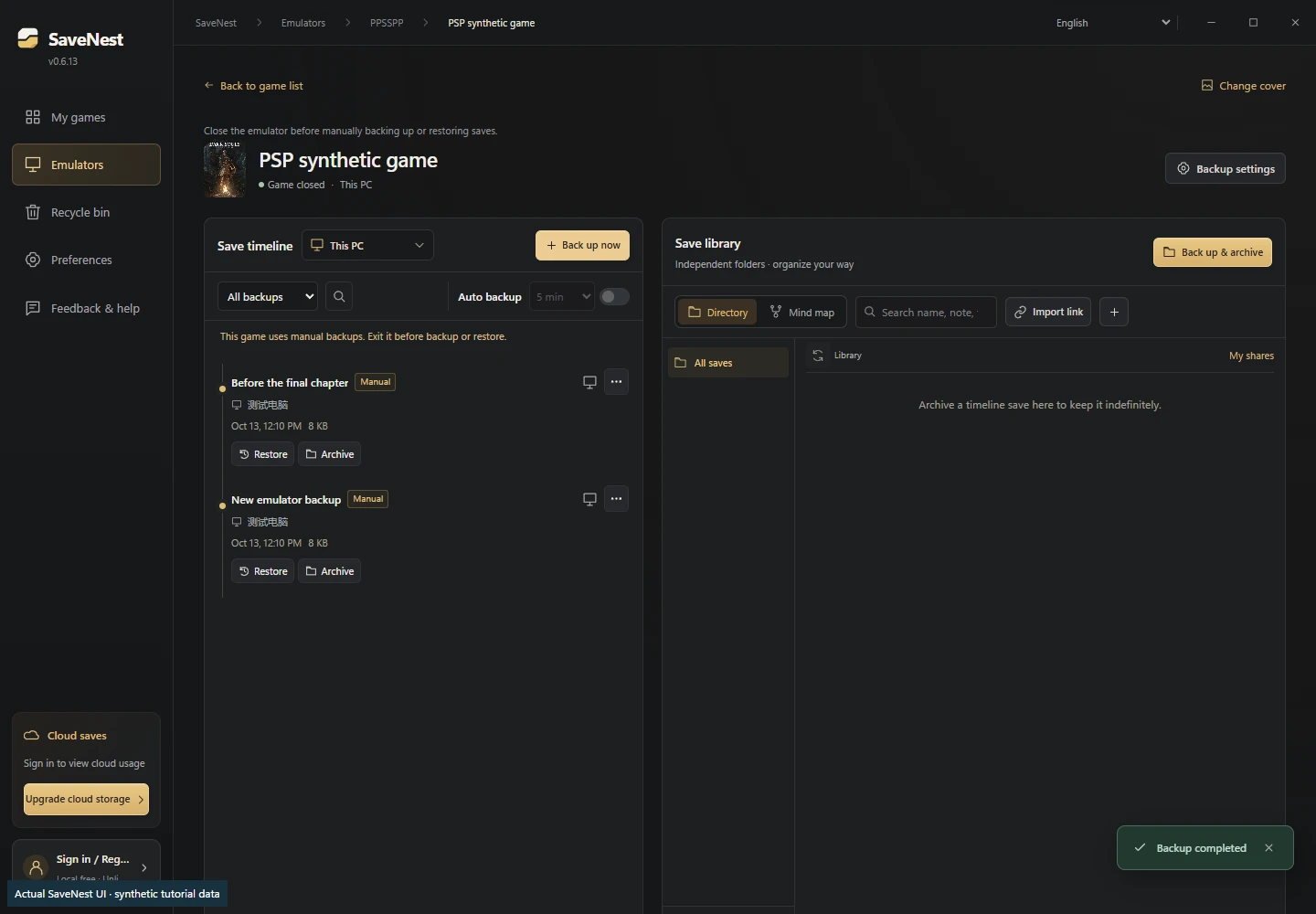
Actual SaveNest 0.6.13 interface with synthetic PSP data and mocked IPC, captured 2026-10-22. The screen demonstrates game identity and manual backup controls, not a commercial game's ability to load the files.
SaveNest scopes normal saves by PSP game ID. Its PPSSPP adapter does not capture PPSSPP_STATE, automate backups on Android or convert regional save formats.
Transfer PPSSPP saves to another PC or Android
Retain independent copies of both devices' existing saves. Find the destination's active PSP folder first: copying into a familiar-looking but inactive directory will not make the game see the files.
On Android, inspect Settings → System → PSP Memory Stick → Memory Stick folder and its granted folder permission. If the chosen folder itself is named PSP, the app may use it directly; avoid an accidental PSP/PSP nesting. Do not uninstall the source app before verification.
Copy the complete matching game's slot folders into the destination SAVEDATA. If same-named folders exist, preserve them separately before replacement. Confirm the same game ID/region. Use the game's normal Load menu, check the intended milestone, exit normally and check once more on the next launch. A completed USB transfer is not the final check.
SaveNest manages the Windows backup side; it does not install or control PPSSPP on a phone.
Restore a PPSSPP checkpoint in SaveNest
Fully close PPSSPP, preserve the current save, then select the intended timeline entry and review Restore. Check the game and milestone before confirming. Other games can share the parent SAVEDATA, so do not replace that entire parent to restore one game.
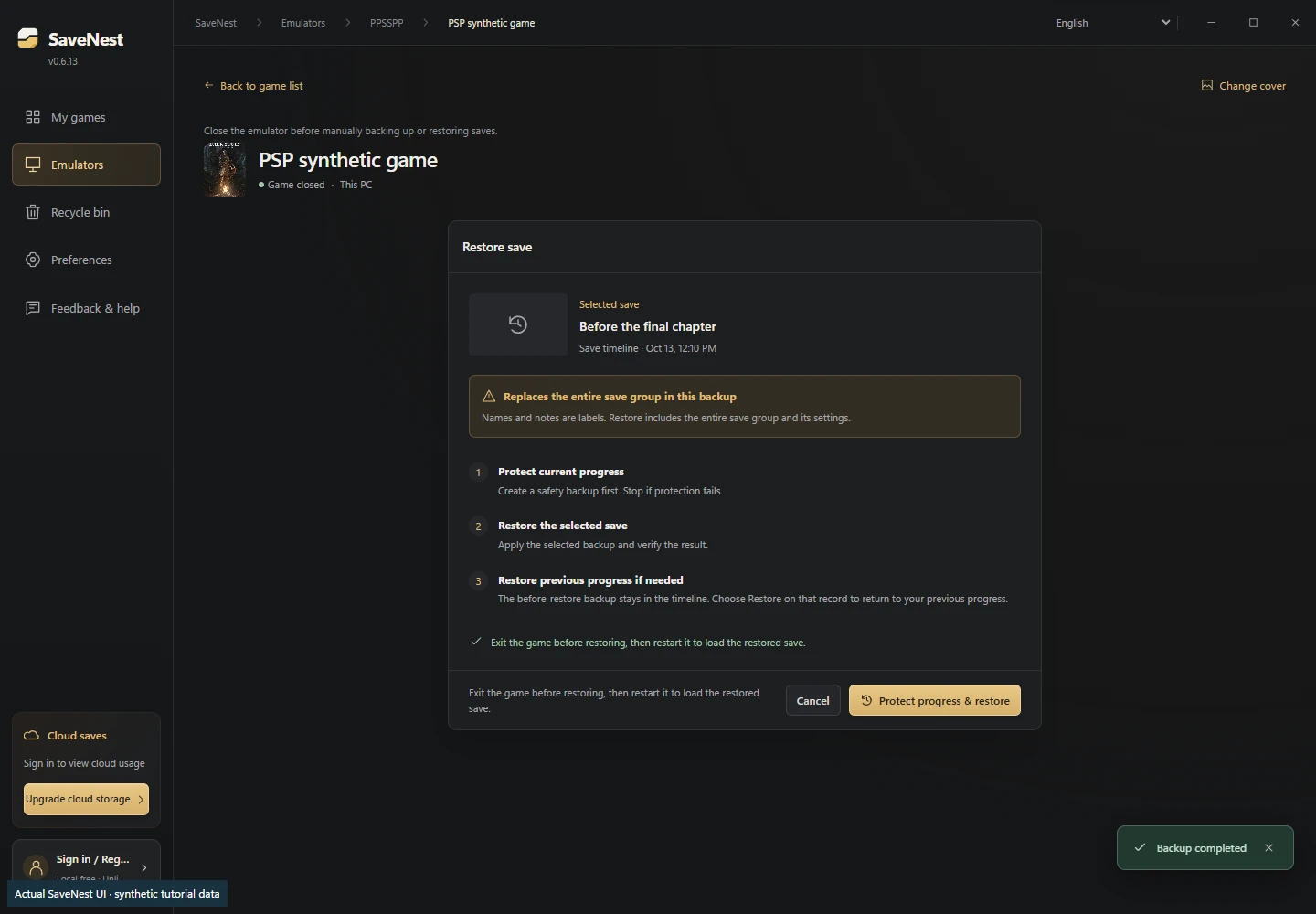
Actual restore-review UI with synthetic data. Verify the selected game and checkpoint. This is a presentation demonstration, not a live PSP-game recovery test.
PPSSPP save not showing after transfer?
Check the active Memory Stick, an extra nested PSP directory, matching ID/region, complete slot folders, and whether you copied a save state instead of a normal save. Renaming a folder does not convert the internal format.
PPSSPP documents that loading an old state after a newer normal save can confuse some games' save history. Keep both candidates and read its troubleshooting advice before trying more old states. If no earlier usable copy remains anywhere, creating a new backup cannot reconstruct overwritten progress.
References and related guides
- PPSSPP: Windows save storage
- PPSSPP: Android storage and folder permissions
- PPSSPP: saves will not load
- PPSSPP: save state time warps
- PPSSPP, Ryujinx and Yuzu backup overview
Reviewed 2026-10-22. Normal saves and save states are separate backup targets; recovery requires an existing usable copy.