SaveNest
Back up emulator saves after saving inside the game and completely closing the emulator. Keep each installation, user and game separate. PPSSPP normal saves, a Ryujinx container and a Yuzu NAND directory have different layouts; they are not interchangeable folders.
This guide covers SaveNest's Windows adapters for PPSSPP, Ryujinx/Ryubing and the supported legacy Yuzu layout. It does not promise console storage access, Android automation or compatibility with every emulator fork.
Identify the save type
- PPSSPP normal save: complete game-slot folders under
PSP/SAVEDATA. - PPSSPP save state: an emulator snapshot under
PSP/PPSSPP_STATE. SaveNest's PPSSPP adapter does not capture this directory. - Ryujinx: a container under
bis/user/save. Its numbered directory is not the game's Title ID. - Yuzu: the supported layout is
nand/user/save/0000000000000000/<user ID>/<Title ID>. Choosing another user can look like missing progress.
Use the separate PPSSPP save location and transfer guide for device migration. For shadPS4/Bloodborne, follow the Bloodborne save backup guide instead.
Choose the installation you actually use
- Open Emulators in SaveNest. Select PPSSPP, Ryujinx or Yuzu, then your actual installation. Portable and installed copies may use different data roots.
- If it is absent, use Add manually and select its installation or data directory, not a game image.
- Open the game card and check its game/user identity. Different installations and users keep separate histories.
- If backup is unavailable because there is no save yet, save normally inside the game, completely exit the emulator and select Scan again. A library entry can exist before its first save.
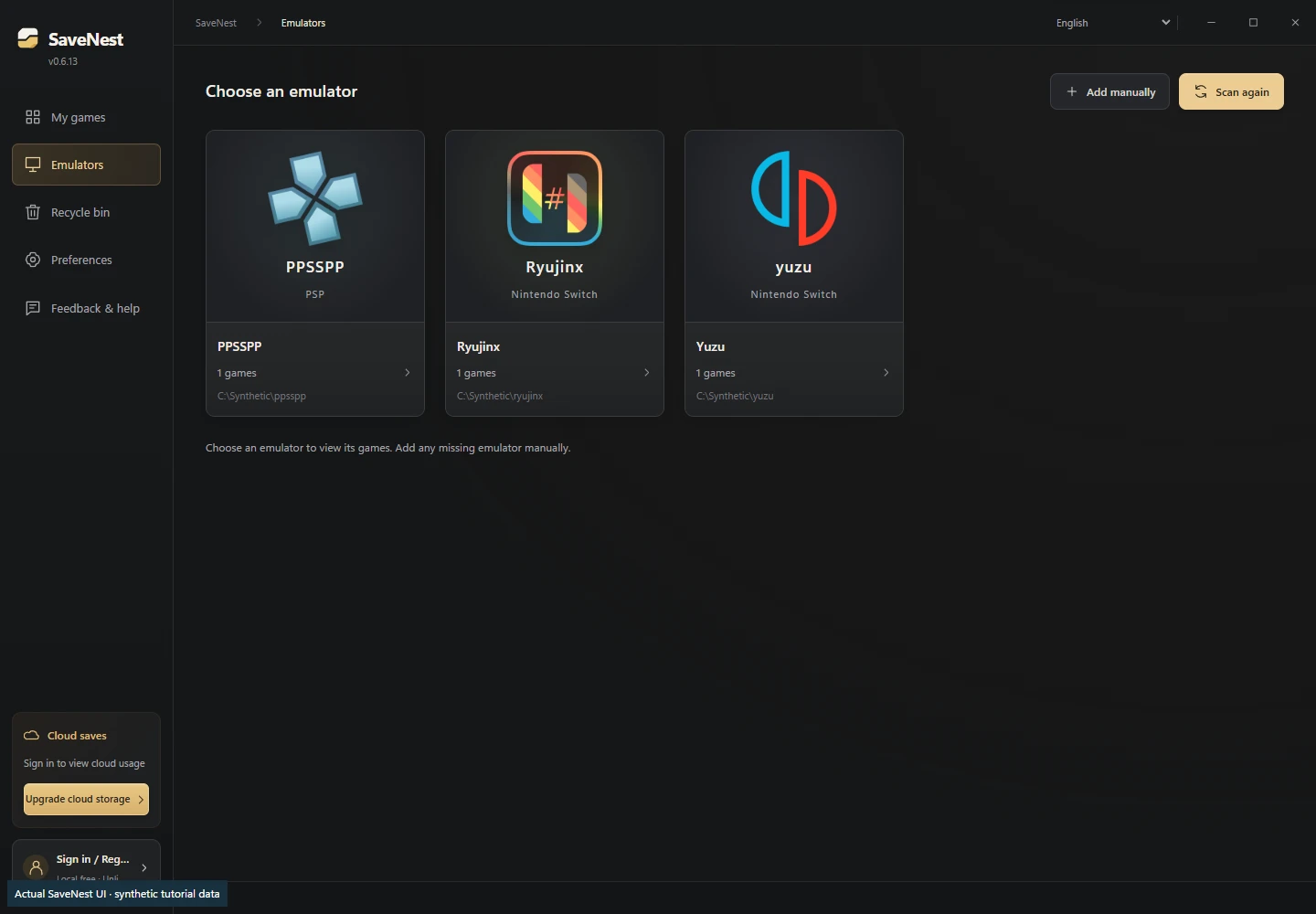
Actual SaveNest 0.6.13 React interface, captured 2026-10-22 with synthetic tutorial installations and mocked IPC. This demonstrates the three entries, not commercial-game compatibility. Click to inspect the full image.
Make a recognizable manual backup
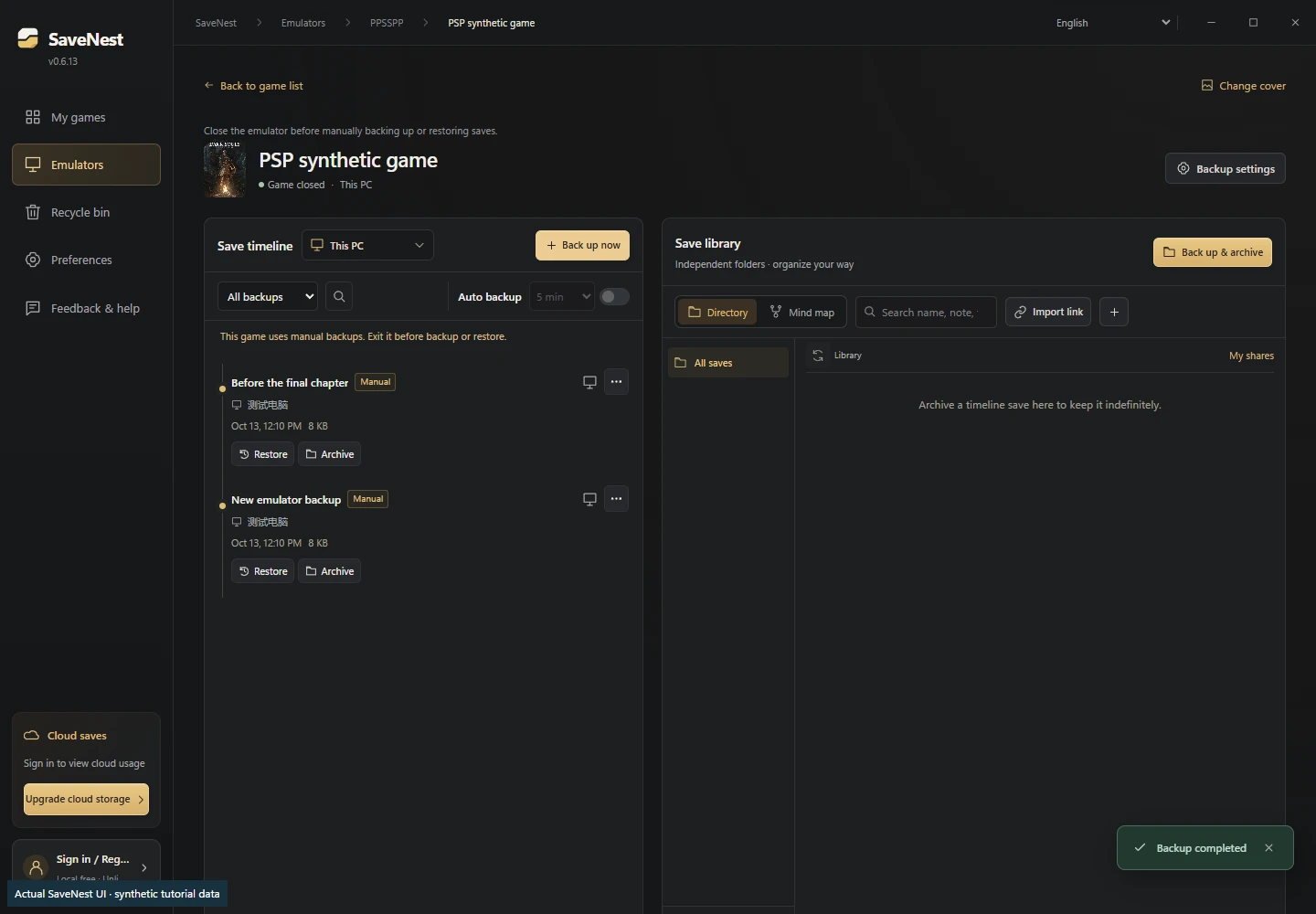
Save in the game, then close the whole emulator process. Returning to its game-selection screen is not enough for SaveNest's backup/restore guard. In the game workspace, select Back up now, wait for completion and check the new timeline entry.
Record a milestone, emulator build, game update and user in the backup's name or notes. Archive important checkpoints in the permanent save library. Retain an independent copy before reinstalling or moving an emulator.
The current emulator workflow uses manual backups. It does not continuously capture a running emulator, back up game images or reconstruct progress that was never preserved.
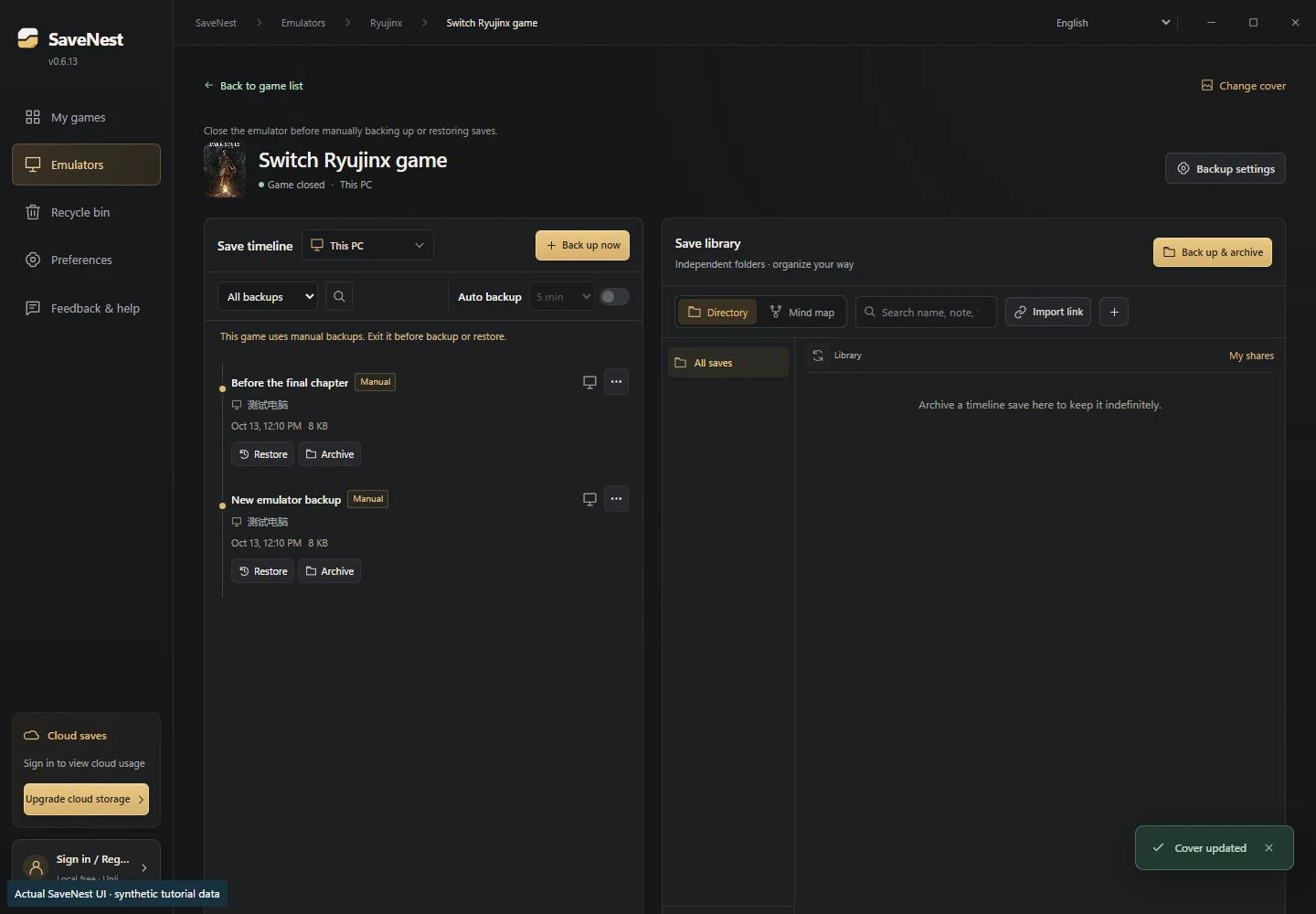
Actual SaveNest interface with synthetic Switch save records and mocked IPC. Inspect Back up now and the separate timeline entries. The demo does not prove that any particular game loads these files.
Ryujinx: preserve the container and user identity
Select the correct game and user. Where available, use the emulator's Open User Save Directory command to locate active files rather than picking the first number under bis/user/save. Check whether the game uses a user or device save.
For a same-installation rollback, preserve the complete container represented by the SaveNest entry. The adapter checks ExtraData0/ExtraData1 to associate supported saves with game/user identities. Renaming a container to a guessed Title ID is not a conversion. Keep its metadata together; stop on unknown or conflicting metadata instead of forcing a restore.
Ryubing's documentation warns that deleting a user profile also deletes its save data. Back up before changing or removing profiles.
Yuzu: check the configured NAND and selected user
SaveNest reads the configured NAND and supported legacy user/save/0000000000000000 layout; the next directories identify user and game. Portable installations or a custom NAND may not use an example AppData path.
If progress appears missing after a move, check installation, selected user, NAND configuration and game update first. Do not create a fresh save over the only candidate or replace it with another user's whole directory. Newer account/device layouts used by some descendants are outside this adapter's current support; leave unsupported files untouched.
Restore or move without losing the current copy
For a rollback within the same supported installation, close the emulator, back up its current state, then select the intended timeline entry and review Restore. Afterwards, open the same emulator, user and game. Check a specific character, slot or milestone, exit normally and check it again on the next launch. File verification alone does not prove that the game accepts a save.
For a new PC or a move between Ryujinx and Yuzu, keep source and destination backups separately. Their outer containers are not a common import format; SaveNest does not convert one into another. A game-specific transfer needs the destination's documented import procedure, matching game/update details and an in-game check. Keep the source intact when these cannot be confirmed.
If a backup or restored save is missing
- Game listed, backup disabled: make a normal in-game save, fully exit and rescan.
- Wrong progress: check installation, user, edition and update before changing files.
- Restore blocked as running: close the entire emulator, not just the game session.
- Unknown metadata/layout: preserve the files and record the exact emulator build and warning; do not rename numbered directories at random.
- No earlier copy: a fresh backup or sync cannot rebuild overwritten history. Look for independent retained copies.
References and related guides
- PPSSPP: Windows save storage
- PPSSPP: save state time warps
- Ryubing: setup, portable mode and profiles
- Yuzu-family reference implementation: save directory construction
- PPSSPP backup and transfer
- Restored save not showing
Scope checked 2026-10-22 against SaveNest 0.6.13 source and controlled UI fixtures. SaveNest manages Windows local backups, not real-console storage, game distribution or guaranteed cross-emulator compatibility.