SaveNest
A local copy, a remote copy and a live save are three different states
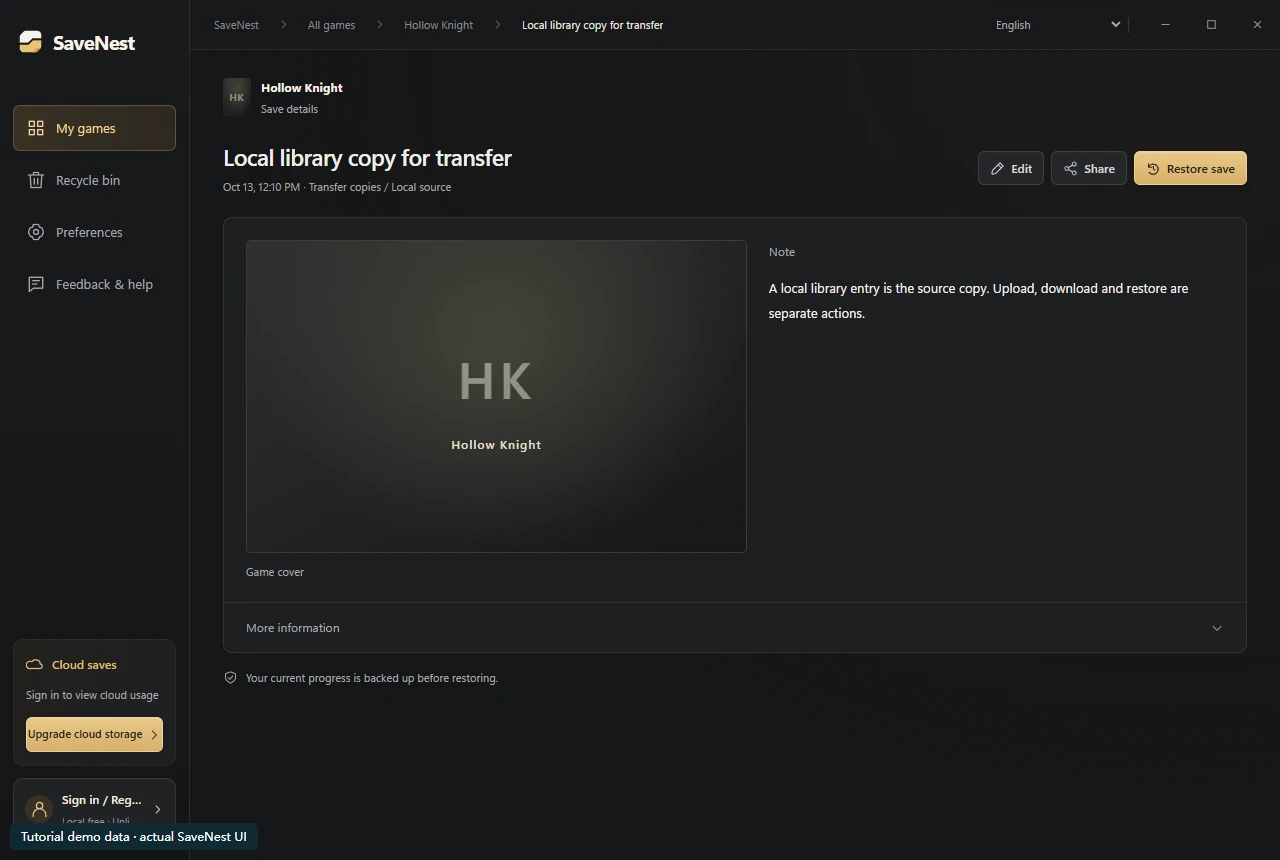
Start by opening the local library entry and checking its name and details. Uploading this entry places a copy in cloud storage; it does not install a game or merge characters. On another PC, downloading it brings the backup to that computer. Restoration is the later action that writes it to the configured game directory.
This distinction explains the common report “download finished, but Continue still starts the old save”. Check whether the expected entry is available locally and whether a restore was actually performed. If local backup works but upload fails, investigate sign-in, quota or connectivity without disabling the working local history.
Cloud synchronization and retained versions
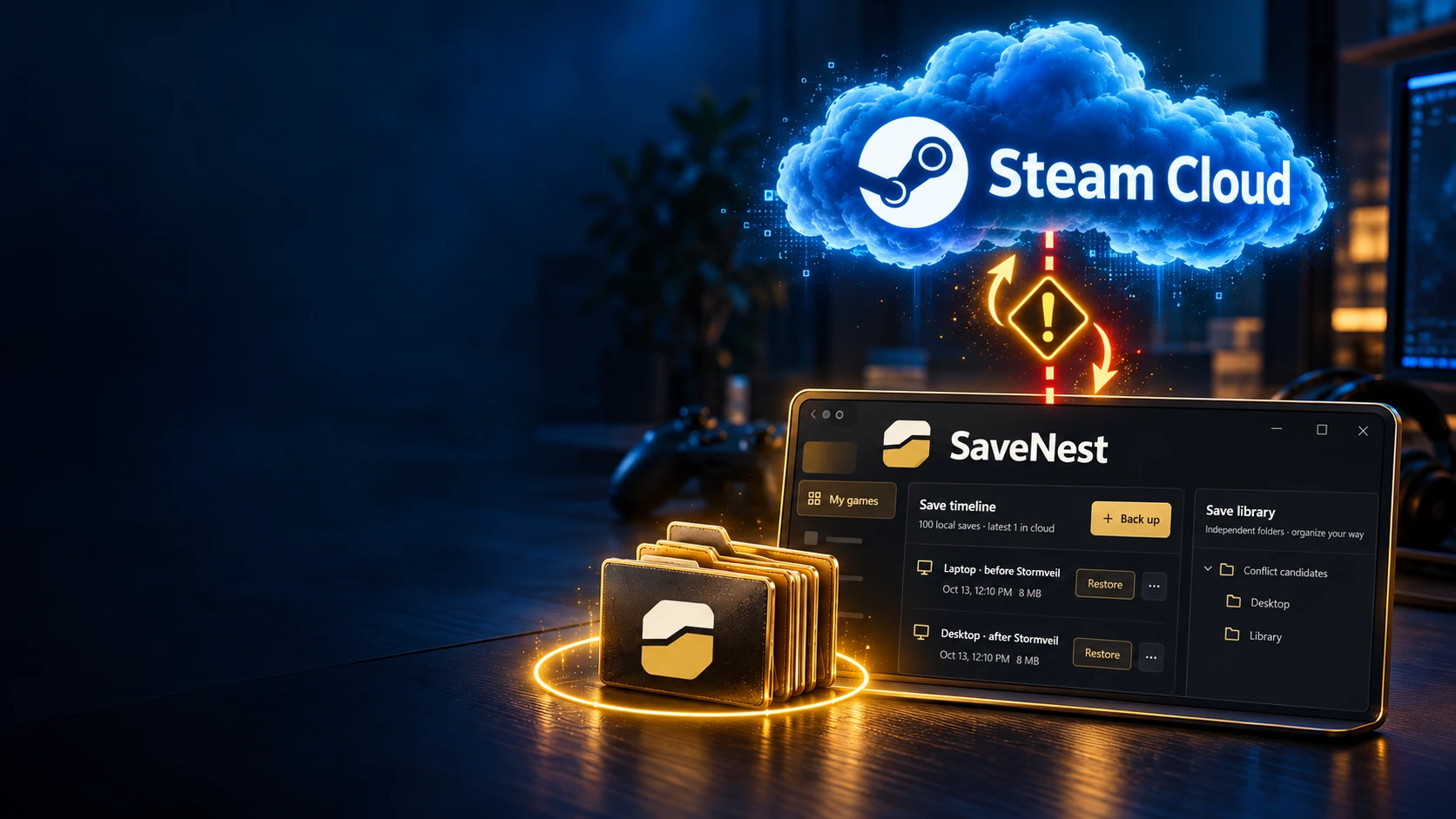
A cloud service can help move progress beyond one computer, but its retention policy determines which older versions remain available. Steam Cloud stores the files configured by a participating game. Independent backup history gives you a separate set of retained versions to inspect and select.
Scroll the table sideways on small screens.
| Method | Useful for | Check before relying on it |
|---|---|---|
| Local backup | Returning to a retained version on this PC | Complete scope and a copy outside the disk for disk-loss protection |
| Launcher cloud sync | Transferring the game-configured files between supported sessions | Game support, active account and conflict direction |
| SaveNest cloud history | Keeping and retrieving separate backup versions across Windows devices | Upload result, version, quota, then an explicit restore |
A game without built-in cloud support
If a game writes local saves that SaveNest can correctly capture, its SaveNest backup can use optional SaveNest cloud storage independently of built-in launcher cloud support. First check the detected scope and a local backup. A game name in a rules list is not proof that every edition or mod configuration behaves identically.
This does not convert server-only progress into local files or make incompatible console and PC formats interchangeable. Moving a save between two Windows PCs still requires a compatible game edition, account and mod setup.
Check the upload before leaving the source PC
Identify the exact local entry first: game, device, capture time and known milestone. Match it with the completed cloud operation and the version shown in cloud history. Keep SaveNest running until the result is visible. A network interruption or quota error needs attention even if earlier uploads succeeded.
Retain the source local copy after uploading. For a reinstall or disk replacement, also keep an independent export outside that machine. The extra copy gives you a recovery path if you cannot sign in or reach the service when setting up the replacement PC.
A downloaded save has not yet been restored
Downloading a SaveNest cloud version retrieves and checks the backup, then adds it to local history. Applying it to the active game is a separate restore action. Locate the downloaded entry and read its confirmation rather than repeatedly downloading the same package.
After a successful restore, verify the account, character slot and milestone in the game. If the result differs, preserve both states and inspect the game’s actual save location and launcher sync activity. A transfer checksum proves byte integrity, not game-format compatibility or the correctness of the chosen playthrough.
Storage, version retention and multiple devices
The current SaveNest service limits an individual cloud package to 5 GB and retains the latest 100 cloud versions per game on each device, within the account’s shared storage allowance. Available space covers histories across devices. Inspect usage and keep needed copies before cleaning up old versions.
When switching PCs, finish the source session and confirm its upload before continuing on the other machine. If both PCs already contain valuable progress, label and retain each before choosing one. Cloud transfer does not merge two different playthroughs into a single combined save.
Common questions
Is SaveNest cloud storage free?
Local backup, restore and export are free without registration. Cloud storage is optional and uses the account’s available cloud access and plan quota. Check the current membership page for the plans and prices.
Can SaveNest download my Steam Cloud files?
SaveNest manages its own backups and cloud history. Any files available in Steam Remote Storage must be inspected through Steam’s own service with your Steam account.
Can the cloud recover a save that was never uploaded?
A service can return only data it actually retained. Check local history, permanent milestones, exports and other devices. A new upload cannot recreate an older state that no remaining copy contains.
Does downloading overwrite current progress?
A SaveNest download adds a local history version. Replacing the active game save requires a separate, confirmed restore with current-state protection.
References & further reading
Game locations and sync behavior can change. Check the instructions for your edition.