SaveNest
These steps concern your own supported Windows local saves. SaveNest captures files the game has already written; it cannot create an in-game checkpoint at an arbitrary moment or roll back progress held only on a game server.
Keep a practice start and a successful result as separate entries
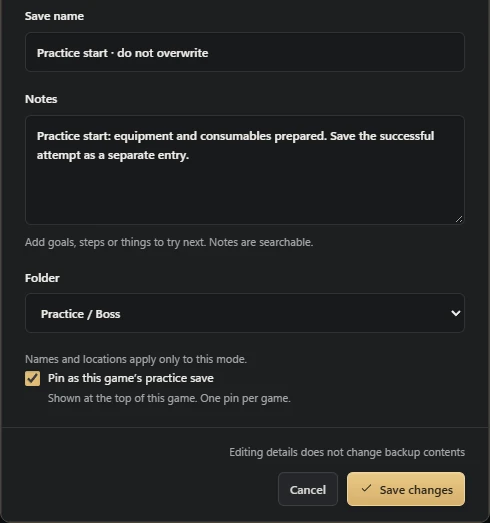
Open the saved library entry, choose Edit and give it a name that identifies the retry point. Add a note describing the setup you want to repeat. Set it as the game’s pinned practice save. The checkbox selects an existing entry for quick restoration; editing the name or note does not capture fresh game progress.
After a successful attempt, let the game save and use Back up & archive to create a separate victory entry. Only then return to the pinned start. Renaming the old entry to “victory” would merely relabel the old bytes. The two-entry arrangement lets you practice without losing the successful outcome.
How to save scum on PC without installing a tool
Save scumming usually means reloading an earlier save to retry a decision, encounter or outcome. The same save/load tools can also support boss practice, route planning and recording a scene again. Choose a starting point you actually retained, and keep the result of a good attempt before going back.
A reload does not guarantee a different random outcome or unlock an achievement. Games may store random state, shared account progress or server-side results differently. This guide covers preserving and restoring your own local files, with the game’s actual save rules determining what changes.
- Find the documented save folder for your game, edition and account. Make an in-game save, close the game and wait for launcher transfers to finish.
- Copy the complete save set into a separate folder named A_before-attempt. Keep filenames and folder structure intact, and note the character and milestone beside the copy.
- After an attempt worth keeping, save and close the game again. Copy that newer complete state into B_after-attempt before returning to A.
- With the game closed, protect its current save set, then restore A to the documented location using that game’s file-replacement instructions. Do not mix account containers or files from different attempts.
- Open the game and check the character, slot and milestone. Keep both copies until verified; restore B the same way when you want the successful result.
In-game saving, backups and quick load
The game decides when progress reaches disk. An external backup copies that written state into a separate version. A restore places a retained version back in the configured location. The game still has to load the correct character or slot afterward.
For example, pressing the backup shortcut halfway through a fight may retain the last checkpoint the game wrote. It does not capture the exact frame, enemy health or unsaved inventory in memory. First learn where that game actually saves, then choose a useful starting state.
Save scumming and cloud saves: avoid sync conflicts
A launcher may synchronize files around a game session. If it reports a conflict after a rollback, compare the retained versions and the progress you want before selecting a direction. A later timestamp alone does not identify the correct playthrough. Follow the instructions for that game and launcher.
SaveNest cloud history is separate from Steam Cloud. Downloading a SaveNest cloud version adds it to local history; it does not automatically apply it to the active save. Select and confirm a restore afterward. Keep the game closed during file replacement and avoid two devices writing competing progress.
When Ctrl+S or Ctrl+L does nothing
- Check that SaveNest is running, backup is enabled and the correct game is recognized in the foreground. These shortcuts do not control the browser demo.
- Inspect the configured shortcuts and any registration error or conflict. Use the client button to check whether the underlying operation works before changing bindings.
- Read the failed stage. An exit or restart problem is different from a failed restore. If restoration completed, inspect the game state before triggering another replacement.
- If the game still shows newer progress, check the account, slot, save location and launcher sync activity. Retain both candidates while investigating.
Choosing a save scumming backup tool
Use the game’s extra save slots when they preserve the state you need. Manual folder copies suit occasional retries. For repeated attempts, look for named checkpoints, a clear restore scope and a protected current copy before replacement; cloud sync alone does not establish a history of checkpoints.
SaveNest is one option for supported Windows local saves: backup, restore and export work without sign-in. Its default Ctrl+S captures written files and Ctrl+L opens a restore picker. Keep practice masters in the permanent library; the timeline retains the latest 100 entries per game. Verify a disposable checkpoint before relying on a valuable playthrough.
Practice a boss without losing a successful run
After the game saves before the fight, keep a named practice copy in the permanent library. Check that restoring it returns to the intended location with the expected equipment. After a win, let the game save and keep a separate victory copy before restoring the practice copy. A backup made during combat may still contain the previous checkpoint.
Explore another ending while keeping your main playthrough
Keep a checkpoint before the irreversible choice and label each later branch separately. Before restoring, check whether the save set contains other characters or shared account progress; a name does not limit the restore to one slot. Preserve the current complete save set first. Reloading cannot undo server-side achievements, purchases or choices that were never in the local backup.
Common questions
Which backup tool should I choose for quick save/load?
For supported Windows games with local saves, SaveNest offers backup and restore-picker shortcuts and a permanent checkpoint library. Check the game edition and save location, then try a non-critical restore first.
Can SaveNest save and reload at any moment?
SaveNest copies files already written by the game, not live memory. By default, Ctrl+S backs up the recognized game and Ctrl+L opens the restore picker. The game must stop before files are restored. Server-only progress cannot be rolled back.
Which backup tool should I choose for quick save/load?
For supported Windows games with local saves, SaveNest offers backup and restore-picker shortcuts and a permanent checkpoint library. Check the game edition and save location, then try a non-critical restore first.
Can SaveNest save and reload at any moment?
SaveNest copies files already written by the game, not live memory. By default, Ctrl+S backs up the recognized game and Ctrl+L opens the restore picker. The game must stop before files are restored. Server-only progress cannot be rolled back.
Is save scumming the same as cloud saving?
No. Save scumming describes retrying from a saved state; cloud saving describes storing or synchronizing files remotely. You can reload your own local checkpoint without a cloud account.
Can quick save capture unsaved progress?
It backs up files the game has already written. Wait for the game to complete its own save before capturing the checkpoint.
Do I need a membership to use local save/load?
Local backup, restore and export in SaveNest are free without sign-in. Optional cloud storage has separate account and membership requirements.
Will this work for every game or achievement?
Support depends on the actual local save format, edition and workflow. Server-side progress and each game’s achievement rules remain controlled by the game. Check the intended game before using a valuable save.
References & further reading
Game locations and sync behavior can change. Check the instructions for your edition.