SaveNest
Missing from the Load menu does not always mean deleted
Record the game edition, store, signed-in account and last known milestone. An empty new Windows profile or another game account can point at a different folder. Open the save-location wiki for that exact game and store before starting a new character or replacing files.
If the files exist but the game refuses to load them, retain the error text and check version, DLC and mod requirements. A missing-file search and a corrupted-file diagnosis are different tasks. Do not rename another player’s account folder or edit a save just to make it appear.
Search the places that could still contain the old progress
Scroll the table sideways on small screens.
| Candidate | What to do | What it proves |
|---|---|---|
| Previous PC or drive | Before launching the game or syncing again, copy its existing save folder to separate storage. Keep the original unchanged. | The older device may still hold progress that never uploaded. |
| Steam Remote Storage | Sign in to the account that played the game, inspect the listed files and download available candidates to a separate folder. | These are the files currently available there, not a guaranteed version history. |
| Existing backup or export | Inspect the game, account, capture time and milestone before choosing a copy. Keep an independent copy of the candidate. | A backup from before the incident may contain the wanted state. |
| Game-specific recovery files | Follow the developer’s recovery instructions for that exact edition; preserve the complete original folder first. | Backup names and companion-file rules vary by game. |
If you already had SaveNest backups
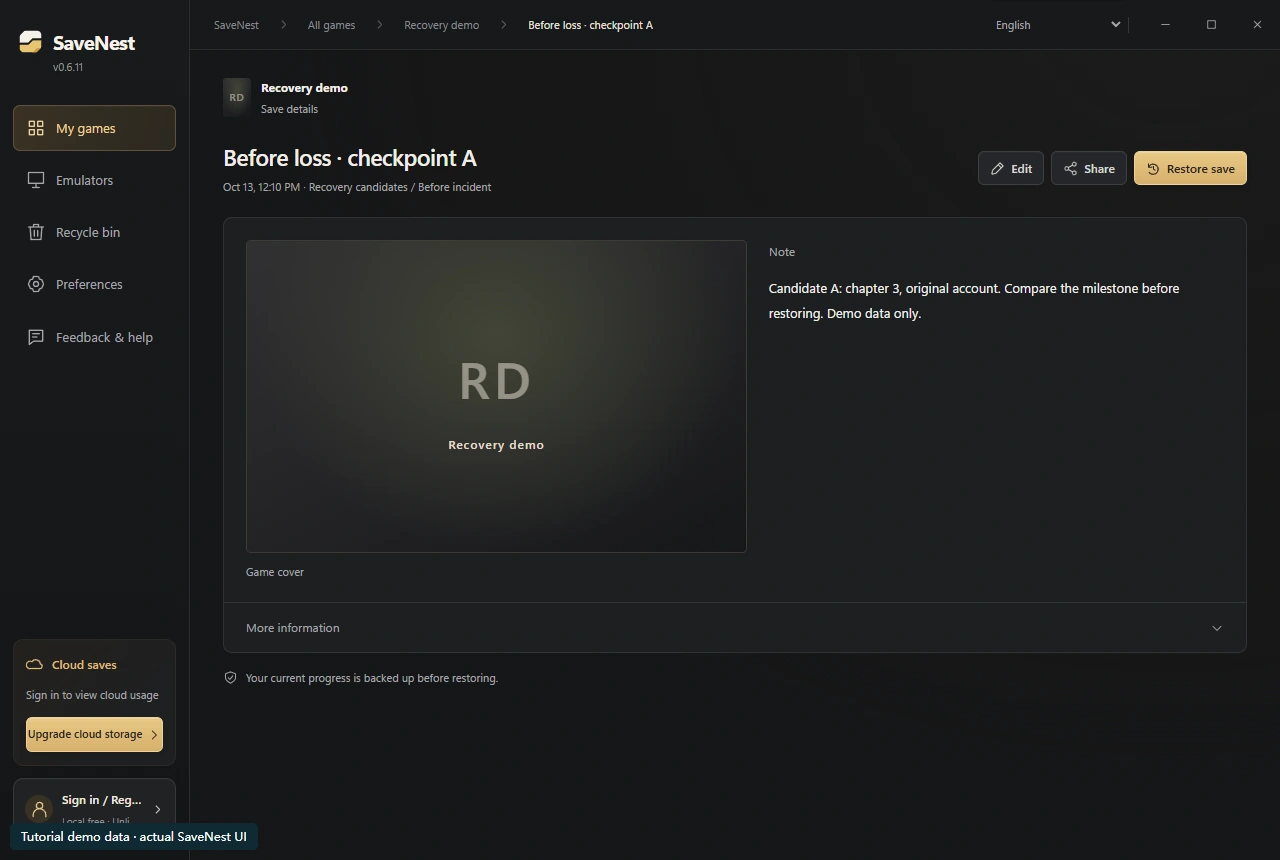
Open My games, select the correct game, and inspect both its timeline and library. Open Save details for a candidate and compare its note, capture time and account scope with the milestone you remember. The name is a label; renaming an entry does not change the saved contents.
A cloud copy must be downloaded before the separate Restore action. Close the game, review the destination and full restore scope, and preserve current files before applying the chosen copy. If current-state protection fails, resolve that failure before proceeding.
Validate one candidate without discarding the others
- With the game closed, retain the current folder and the candidate as separate copies. Match the account, edition and complete save set.
- Apply one documented restore procedure, then choose the intended slot from the game’s Load menu. Check the character and a recognizable quest, day or location.
- Save normally, exit and reopen once to confirm the progress persists. Keep the other copies until launcher synchronization and this second load are checked.
When no usable copy remains
If the desired progress was overwritten in every available location, synchronization and a newly installed backup manager cannot reconstruct it. For account-based online progress, contact the game’s official support with the correct account and incident details. For local-file loss, preserve the affected drive and seek appropriate recovery help before writing more data.
Steam Support explicitly says it cannot recover lost saves or resolve cloud conflicts for you. Treat the absence of a usable copy as a real limit, then establish a checked backup routine for future play.
Common questions
Can SaveNest recover a save that was never backed up?
It can restore retained copies, not recreate missing bytes. Check the game’s recovery files, other devices and available provider copies first.
References & further reading
Game locations and sync behavior can change. Check the instructions for your edition.