SaveNest
Dark Souls Remastered save file location
01 / The manual method
Set up a repeatable boss attempt manually
Documents\NBGI\DARK SOULS REMASTERED\<account>\DRAKS0005.sl2A useful practice save records more than “before boss”. Note the starting bonfire, equipment loadout, healing count, route to the fog and which opponent you plan to defeat first. If you change these between attempts, the results are harder to compare. These are a practice plan, not a claim that SaveNest can create an in-game checkpoint.
Prepare the fight, let the game save and quit. Copy the whole account folder as the practice start. After each attempt, quit before replacing it with that original copy. Save a win in a separate folder before returning to practice; all characters in the account can roll back together.
02 / The SaveNest workflow
Detect the save, enable backups, keep a way back
Keep SaveNest running for automatic checks and confirm automation is enabled for this game. The interval is a check schedule, not a guarantee that each tick produces a new distinct save. Busy or changing files may require another attempt; inspect visible failures.
- Find the exact game and edition in SaveNest. Enable backup and review the detected save location and player account. If nothing is found, confirm the game has created a save and resolve detection before continuing.
- Finish the in-game save, exit normally and wait for launcher transfers. Choose Back up now. Stay on the result until success or an actionable error appears; enabling automation alone does not prove a copy exists.
- Turn on Auto backup for this game and choose a backup interval. Keep SaveNest running; check the timeline for a successful backup after your progress changes.
Scroll the table sideways on small screens.
| Task | Manual method | With SaveNest |
|---|---|---|
| Find the active save | Look up the path and identify the account folder yourself. | Detect supported games and save locations; confirm the matching account once. |
| Keep several versions | Remember to copy, date and organize each backup. | Enable automatic backups for timeline history; keep important milestones in the permanent library. |
| Edit the save | Copying a save preserves its existing values. | Request support for this save |
| Repeat a boss attempt | Exit, find the original copy and replace the account save each time. | Pin the practice save and use Ctrl+L to select and confirm a restore. |
Set the practice question before saving
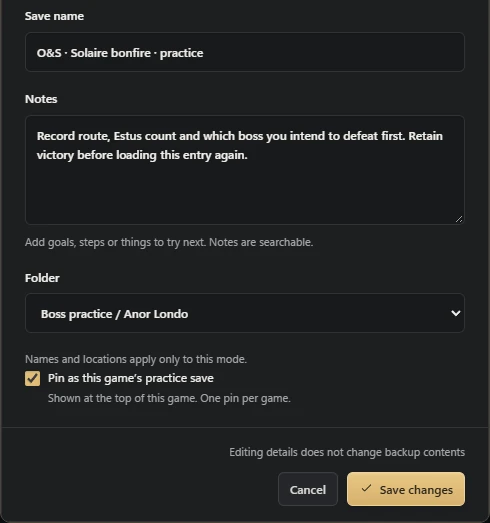
After the game has saved the prepared state, quit and archive it. In the entry editor, add the setup note and pin the entry as the practice save. The screenshot uses an Anor Londo example. Do one trial restore and verify the starting position before committing a long practice session.
After a win, leave two entries in the library
Let the game finish saving the result and quit. Use Back up & archive to create “O&S defeated · victory”, leaving the original practice entry intact. Reopen the victory entry and confirm its creation time before loading the start again. A time-line backup may rotate out; keep the result in the library if you want to revisit it.
Understand shortcut behavior
Ctrl+S and Ctrl+L are defaults, and settings can change them. Saving requests a backup; loading first opens the selection prompt. Read the selected row and its milestone before Enter. Esc cancels the prompt before confirmation.
Use the ordinary backup and restore buttons to learn the workflow first. That lets you inspect history and scope without relying on a key binding while concentrating on combat. Confirm visible success rather than assuming every press produced a new entry.
What the confirmed workflow coordinates
For recognized game and launch configurations, the Windows workflow can coordinate exit, current-state protection, restoration and restart. Follow prompts when a launcher or screen requires a manual choice.
Exit or restart failure is different from a failed save restore. Inspect the reported stage. A successful restore followed by an unrecognized screen should not prompt another blind replacement. Loading times depend on the actual PC and game environment.
Keep other characters and successful attempts
The checkpoint can contain other character slots in the account container. Its boss name is a label, not a slot filter. If other characters progressed since the master was captured, retain a newer complete version before returning to it.
Separate the purpose of copies: a master for repetition, attempt history for investigation and a victory milestone for the result you want to keep. The workflow manages your own retained states; it does not change boss behavior or guarantee achievements.
Troubleshoot missing shortcut feedback
Check SaveNest is running, the game is enabled, the foreground title is recognized and the configured shortcuts match what you pressed. Another application may own the same binding. Do not repeatedly press load while the workflow is busy.
Try the normal button and inspect its specific result. If backup works there, focus on recognition and binding rather than editing save paths. If it also fails there, retain current files and report the stage and exact error through Feedback & help.
Common questions
Can I make a pre-boss state after winning?
You need an earlier retained state. A later capture cannot reconstruct an earlier event.
Is quick load immediate?
It still involves the required exit, protection, restore and launch stages. Watch the result and complete required manual screens.
Can I change the shortcuts?
Yes. Use the bindings shown in your current settings and check for conflicts with other software.
References & further reading
Game locations and sync behavior can change. Check the instructions for your edition.