SaveNest
01 / The manual method
No Campaign or DMZ button on Xbox PC?
For a missing launch button on the Xbox PC version, check that Call of Duty: Modern Warfare 4 - Content Pack 1 is installed. Having the base game installed does not settle this particular check.
As of 22 October, Activision is still investigating this Xbox PC launch-entry issue. If those checks do not restore the button, keep following its updates; reinstalling repeatedly does not establish that a campaign save was lost.
- Return to My Library in the Xbox app and locate MW4. If it is not listed, clear the Installed filter under Play state first.
- Right-click the game, open Manage and inspect Add-ons for Content Pack 1. If the pack is missing, check Add-ons for this game on the game page and install it. Finish pending installations and updates before launching again.
- Check the Microsoft Store account’s device-management page as well. Activision lists reaching the ten-device limit as another thing to inspect for this problem.
Online progression looks new? Read the complete Activision ID
Open Options → ACCOUNT → Activision Account from the home screen. Compare the complete Activision ID, including the digits after #. If the old PC or platform is still signed in, check its ID too. A matching display name alone does not confirm the account.
Online progression is kept on the Activision account. If the platform you play on has been linked to another Activision account, the old progression does not move across with it. Finding the original account is the useful next step.
- Sign in to the Activision account website and open LINKED ACCOUNTS. Compare the linked Steam, Battle.net or Xbox identity with the one you actually use to play.
- If it is the wrong Activision account, regain access to the original account first and confirm the intended linking before changing anything. Linking the platform back to the original account is the route to its retained progression.
- Do not unlink repeatedly to test different accounts: the normal unlink limit is once every twelve months. Check the account page’s restrictions before changing the link.
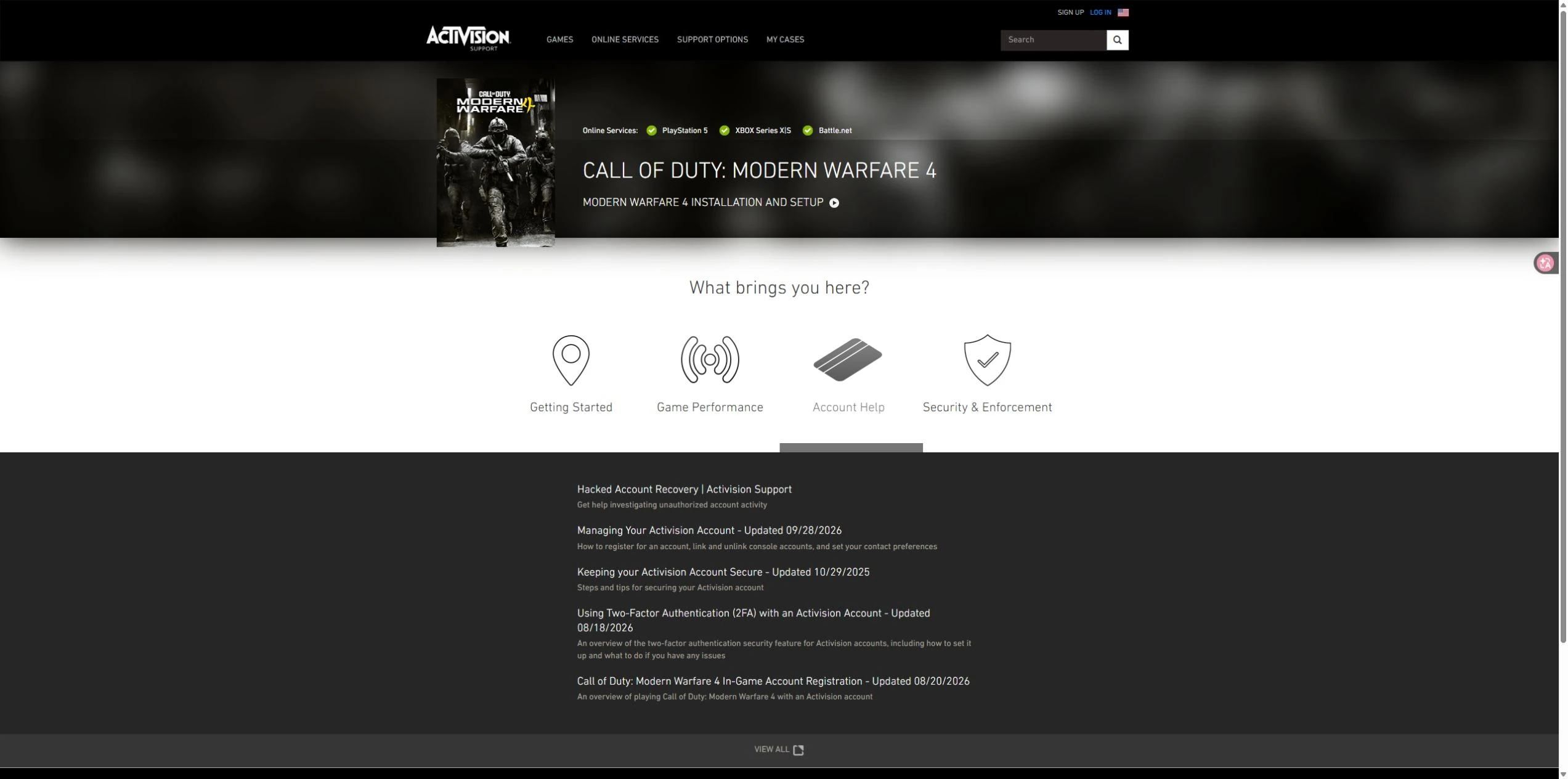
An unfamiliar account appeared in the linked list
An unfamiliar linked account or account changes you did not make need a different response from simply signing in with the wrong ID. Use Activision’s hacked-account recovery process rather than trying more unlink-and-link combinations.
Provide the account details through the official recovery form. Keep passwords and verification codes out of public posts or screenshots.
The campaign opens, but Continue loads the wrong checkpoint
This is a checkpoint problem rather than a missing installation entry. Record the mission and the state that loaded, and keep any backup you already have. A save-folder fix for an older Call of Duty release should not be used as though it were a confirmed MW4 fix.
A useful bug report tells support what changed between the two sessions. Include your PC store and game build, mission and difficulty, the checkpoint reached before quitting, and the checkpoint loaded next time. Note whether a crash or error occurred.
02 / The SaveNest workflow
Protect local games while the account issue is handled separately
SaveNest does not recover Activision online progress or add missing campaign content. For MW4, use Request support for this game and include your PC store, game version and the save task you need. Do not select a guessed folder.
For supported Windows games you also play, SaveNest detects games and save locations, keeps automatic backup history and offers editing for recognized formats. Enshrouded, Cyberpunk 2077 and Balatro have dedicated visual editors; follow the matching guide below.
- Cyberpunk 2077 Save Editor: Money & Unspent Points
- Enshrouded Save Editor: Inventory, Levels & Safe Backups
- Balatro Save Editor: Money, Hands & Discards
Scroll the table sideways on small screens.
| Task | Manual method | With SaveNest |
|---|---|---|
| Online progress | Check the original Activision account and linked platform. | Account recovery stays with Activision support. |
| Find the active save | Look up the path and identify the account folder yourself. | Detect supported games and save locations; confirm the matching account once. |
| Keep several versions | Remember to copy, date and organize each backup. | Enable automatic backups for timeline history; keep important milestones in the permanent library. |